
Picture this: You’re excitedly clicking on a website to check out the latest gadget reviews, but oh boy, the page takes forever to load because of those massive images. It’s like waiting for your coffee to brew on a Monday morning—frustrating and totally unnecessary. I’ve been there, staring at a spinning wheel, wondering if the internet’s playing tricks on me. As someone who’s tinkered with web stuff for years, I realized that optimizing images isn’t just tech jargon; it’s the secret sauce to a smoother online experience. Let’s dive into how you can make your site zippy without sacrificing those eye-catching visuals.
In a nutshell, optimizing images for faster load times means shrinking file sizes while keeping quality high, so your web pages load in a flash. This directly tackles the common woe of slow sites that bounce visitors away. For instance, if you’re running a blog or e-commerce site, cutting down image weight can shave seconds off load times, boosting user satisfaction and even SEO rankings. Think about it—Google loves speedy sites, and so do your readers. By focusing on techniques like compression and format choices, you’ll ensure every image serves its purpose without dragging things down.
Why Bother with Image Optimization Anyway?
You might be thinking, “Images are just pictures; do they really matter that much?” Oh, they do! From my early days building a personal portfolio site, I remember how one oversized photo tanked my entire page speed. It’s not just about aesthetics; it’s about performance. Unoptimized images can bloat your site’s files, leading to higher bounce rates and frustrated users. Plus, with mobile users making up over half of web traffic, every kilobyte counts on those data plans. A fun fact: According to HTTP Archive, images often account for more than 50% of a webpage’s total weight. That’s like carrying extra baggage on a road trip—it slows you down unnecessarily.
To put it in relatable terms, imagine scrolling through Instagram without those quick-load memes; it’d be a snoozefest. By optimizing, you’re essentially giving your site a leaner build, making it accessible and enjoyable for everyone. And hey, it’s not all technical—there’s an emotional payoff too. When your site loads fast, visitors stick around longer, engage more, and might even share your content, turning a simple tutorial into a gateway for real connections.
Fundamentals of web accessibility standardsThe Tools and Tricks Up My Sleeve
Alright, let’s get practical. There are heaps of tools out there that make image optimization for web a breeze, and I love experimenting with them to find what clicks. For starters, software like TinyPNG or ImageOptim can compress images without you losing sleep over quality loss. These aren’t magic wands, but they’re close— they use algorithms to strip out unnecessary data while preserving details. If you’re into open-source vibes, try tools like Squoosh, which lets you play around with compression levels in real-time. It’s like adjusting the seasoning on a recipe until it tastes just right.
Another cool angle is choosing the right file format. JPEGs are great for photos with lots of colors, while PNGs shine for graphics with transparency. But don’t overlook WebP, Google’s format that’s basically a superhero for web images—it offers smaller sizes with top-notch quality. I once swapped out a bunch of PNGs for WebP on a client’s site, and the load time dropped by 30%. It’s those small wins that keep me hooked on this stuff. Remember, the key is balance; you want images that load fast but still pop on screen.
Step-by-Step Guide to Get You Started
Now, for the hands-on part—let’s walk through how to optimize those images without overwhelming you. I’ll keep it light and straightforward, like chatting over coffee about your latest project.
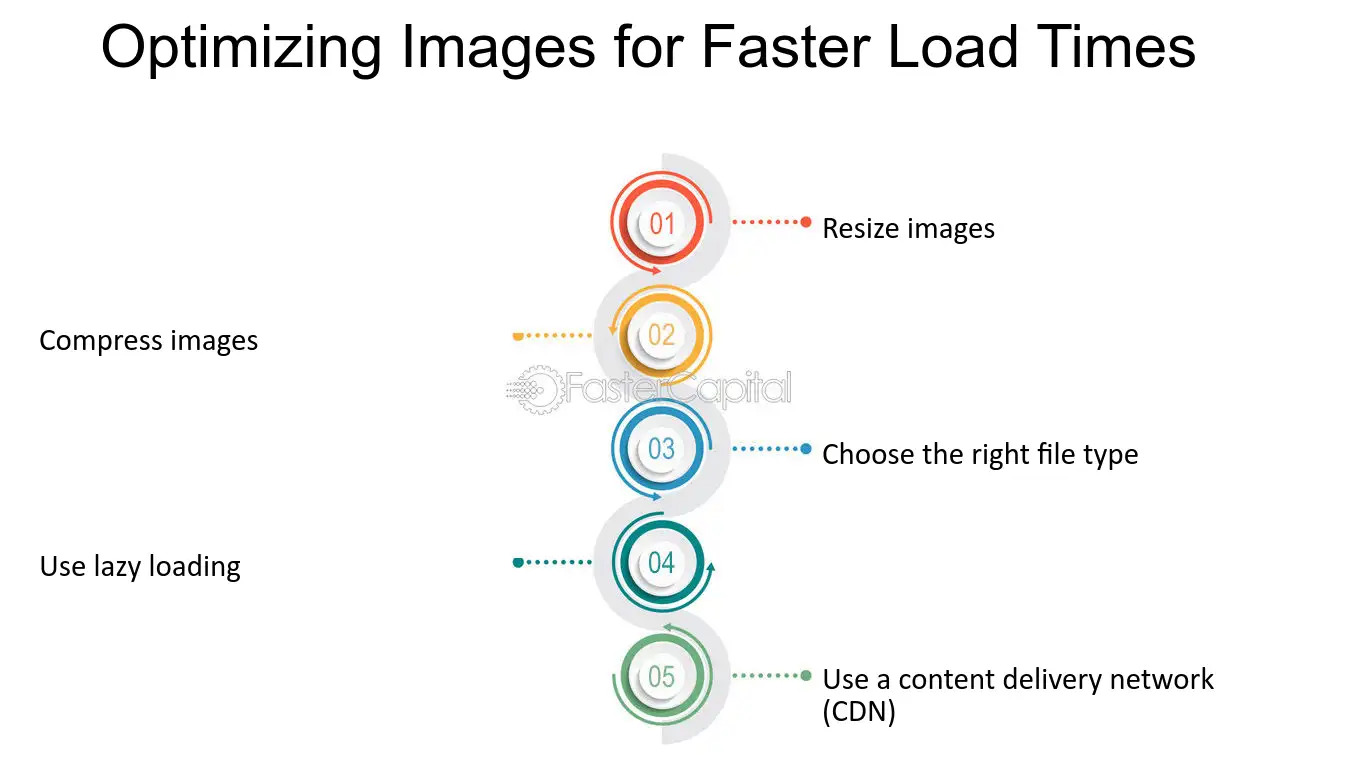
1First, audit your images. Use tools like Google PageSpeed Insights to scan your site and identify which images are culprits. It’s like a health check-up for your web pages—quick and revealing.
Innovative ways to add animations to sites2Compress them smartly. Upload your images to a compressor like Compressor.io and select the right settings. Aim for a 70-80% quality level to keep things sharp but slim. Think of it as trimming fat from a favorite recipe—it enhances the flavor.
3Resize where needed. Don’t serve a massive desktop image to mobile users; use responsive images with HTML’s srcset attribute. This way, devices load only what’s necessary, much like ordering just the right portion at a restaurant.
4Implement lazy loading. This tech delays loading off-screen images until they’re needed, which is a game-changer for long pages. In WordPress, plugins like WP Rocket make this a cinch—it’s like having a smart assistant handle the heavy lifting.
5Test and tweak. After changes, run your site through tools like GTmetrix to see the improvements. It’s satisfying, like finally getting that perfect playlist vibe.
Analyzing popular web design trendsCommon Pitfalls and Pro Tips
Even with the best intentions, it’s easy to slip up. One time, I over-compressed images on a photography site, and the photos looked pixelated—total bummer. So, always preview your work across devices. Another pro tip: Use CDNs (Content Delivery Networks) to serve images from servers closer to your users, slashing load times further. It’s like having local delivery for your digital assets.
| Image Format | Best For | Pros | Cons |
|---|---|---|---|
| JPEG | Photographs | Great compression, supports millions of colors | No transparency |
| PNG | Graphics with transparency | Lossless quality, supports alpha channels | Larger file sizes |
| WebP | Modern web use | Smaller than JPEG/PNG with good quality | Not supported everywhere yet |
As you wrap your head around this, remember that faster load times aren’t just about tech; they’re about respecting your audience’s time. In a world full of distractions, a quick-loading site stands out like a breath of fresh air.
Quick FAQ Section
What is the best tool for beginners? For newcomers, TinyPNG is super user-friendly and free—just drag and drop your images for quick compression without a steep learning curve.
Does image optimization affect SEO? Absolutely, it improves site speed, which is a key ranking factor for search engines like Google, potentially boosting your visibility in search results.
Secure methods for handling user dataHow often should I optimize images? Make it a habit with every update; new images or site changes are perfect opportunities to check and optimize for ongoing performance.
And just like that, you’ve got the tools to make your web pages feel as light and breezy as a summer day. What if you tried this on your site and saw the difference firsthand? Go on, give it a shot—it might just surprise you.