
Ever had that moment when you’re about to install a shiny new app, and it hits you with a list of permissions that reads like a shopping list for your entire digital life? Yeah, me too—it was back when I first got my hands on an Android phone, and I remember thinking, “Wait, does this game really need access to my contacts?” That eye-opener pushed me down the rabbit hole of Android permissions, and trust me, once you get it, everything clicks into place. Today, we’re diving into understanding Android permissions fully, in a laid-back way that won’t make your head spin.
Android permissions are basically the rulebook that keeps your device safe while letting apps do their thing. In a nutshell, they control what an app can access—like your camera, location, or even your messages. To fully grasp this, think of them as bouncers at a club; they decide who gets in and what they can touch. If you’re curious, here’s a straight answer: Android permissions empower you to protect your privacy by granting or denying access to sensitive features, ensuring apps only get what they truly need without snooping around.
Let’s ease into the details. First off, why do these permissions even exist? Back in the early days of Android, apps could pretty much do whatever they wanted, which led to some privacy nightmares—think of it like leaving your front door wide open. Google smartened up and introduced a permission system starting from Android 6.0 Marshmallow. Now, it’s evolved into something more user-friendly, giving you control rather than forcing you to accept everything upfront. I once denied camera access to a flashlight app, and lo and behold, it worked just fine without it. That little win made me feel like a tech wizard.
The Building Blocks: What Exactly Are Android Permissions?
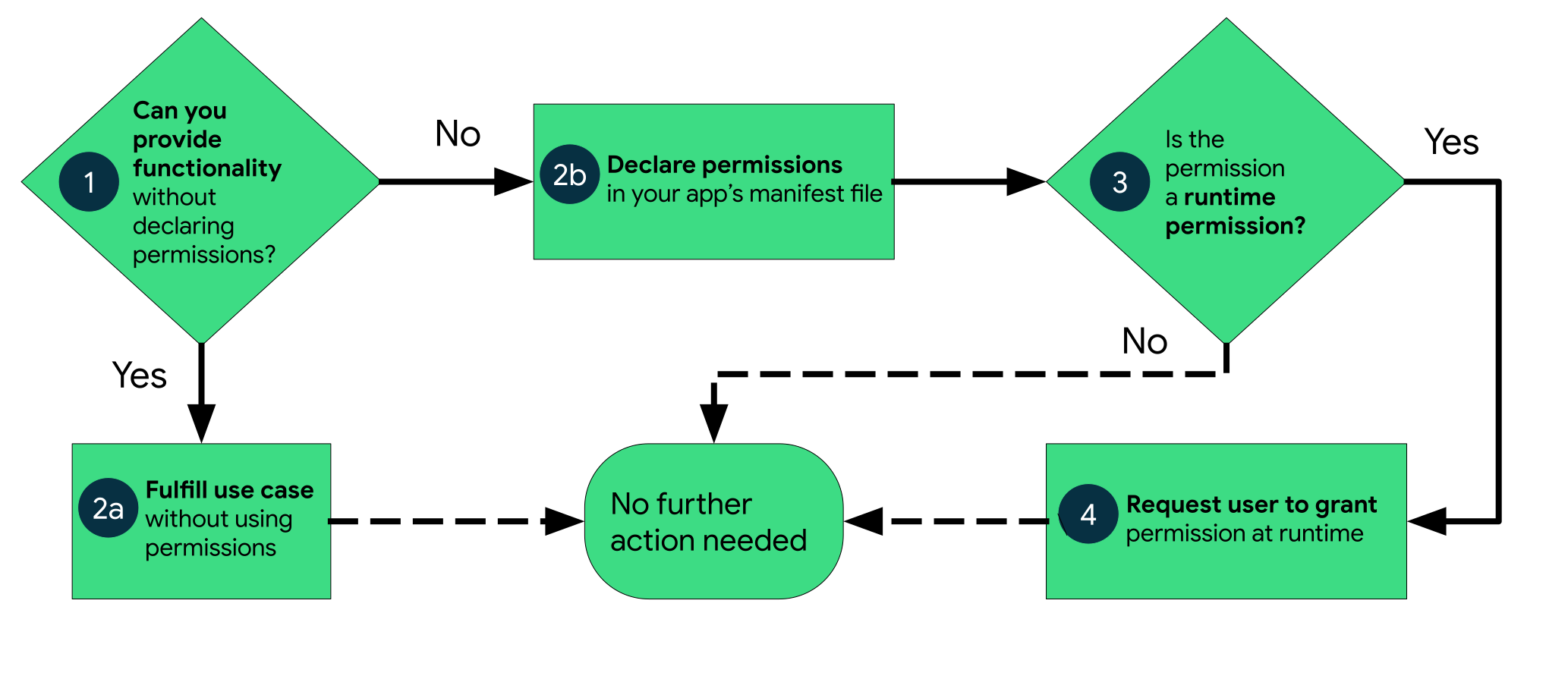
At their core, Android permissions are categorized into groups that define what resources an app can use. Imagine your phone as a house with different rooms—permissions are the keys to those rooms. There are normal permissions, like accessing the internet, which are low-risk and often granted automatically. Then there are the dangerous ones, such as location or contacts, because they involve your personal data. And don’t forget special permissions for things like system overlays or using the device’s accounts—these require extra steps to approve.
Quick Fixes for Android Overheating ProblemsTo make this relatable, picture a meme I saw on Reddit: a cat trying to sneak into a room full of laser beams. That’s your data, and permissions are those beams keeping intruders out. Apps declare these in their manifest file during development, but as a user, you get the final say. It’s all about balance—giving apps enough access to function without them invading your space.
Diving Deeper: Types of Permissions and Why They Matter
Okay, let’s break it down without getting too technical. You’ve got runtime permissions, which pop up when an app needs something while it’s running—like when a social media app asks for your location to tag your posts. These are the ones you can manage on the fly. Then there are install-time permissions for older Android versions, where you okay everything before installing.
For a real-world spin, I was traveling last year and noticed how travel apps hound for location data. It’s handy for navigation, but I always double-check. Here’s a quick table to compare the main types, because visuals help when you’re chilling out learning this stuff:
| Permission Type | Risk Level | Examples | When It Applies |
|---|---|---|---|
| Normal | Low | Internet access, vibration | Granted automatically |
| Dangerous | High | Location, camera, contacts | Requires user approval |
| Special | Very High | System alerts, accounts | Needs extra confirmation via settings |
This comparison shows how not all permissions are created equal—it’s like choosing between a casual chat and handing over your diary. Understanding these can save you from potential headaches, like that time a fitness app accessed my calendar without a good reason.
Exploring Android File Management OptionsHands-On: How to Manage Permissions Like a Pro
Alright, let’s get practical. If you’re on an Android device, managing permissions is a breeze. Start by opening your Settings app—it’s usually that gear icon on your home screen. Head to Apps & notifications, then pick the app you want to tweak. Tap Permissions, and you’ll see a list of what it’s asking for. Easy, right?
For a step-by-step guide, here’s how to review and change permissions:
1Open Settings and go to Apps.
2Select the specific app from the list.
Mastering Android Keyboard Shortcuts3Click on Permissions and toggle what you want on or off.
4Hit back and test the app to see if it still works without that access.
It’s that straightforward, and it puts you in the driver’s seat. I love how Android lets you experiment like this—it’s not as rigid as some other systems.
Watch Out: Common Mistakes and How to Dodge Them
Even with all this knowledge, slip-ups happen. One big error is blindly accepting permissions during installation. Remember, just because an app asks for something doesn’t mean it needs it—it’s like accepting cookies on every website without a second thought. Another pitfall is ignoring updates; Android often tweaks permission handling in new versions, so staying current keeps you secure.
Optimizing Android Storage Space EffectivelyIn a cultural nod, think of permissions like the privacy settings in a social media saga—everyone’s talking about data breaches these days, from TikTok trends to Twitter threads. By being mindful, you’re not just following best practices; you’re joining the digital savvy crowd.
For our FAQ mini-section, here are a couple of burning questions I’ve heard:
What’s the most common FAQ about Android permissions?
People often ask: “Can I revoke a permission after granting it?” Absolutely, and it’s simple—just follow the steps I outlined earlier. It won’t break most apps, but always check if features stop working.
Another frequent one: Do all Android versions handle permissions the same way?
Not quite; older versions like pre-Marshmallow bundle permissions at install time, while newer ones give more granular control. If you’re on Android 12 or later, you’ll have even more options, like one-time permissions.
As we wrap up this chill exploration, I can’t help but wonder: what’s the one permission you’d never grant to an app, and why? It’s a question that might just make you rethink your next download, turning you into a more empowered Android user.