
Ever feel like your Android phone is a messy drawer full of random cables and old receipts? Yeah, me too—that’s exactly how I felt when I first got my hands on a new device and realized the files were just scattered everywhere. It’s like trying to find your keys in a backpack after a long hike; frustrating, but totally fixable. Today, we’re casually wandering through the world of Android file management options, where I’ll share some laid-back tips and tricks to keep things tidy without the tech headache. Let’s make this fun, shall we?
Android file management is all about taking control of your device’s storage in a way that feels natural and stress-free. If you’re like me, you might have stumbled upon this because you’re tired of hunting for photos or documents buried in folders. In essence, it’s your gateway to organizing apps, media, and downloads efficiently, turning chaos into a smooth operation on your smartphone or tablet. Picture this: you’re planning a trip, and instead of digging through apps, you quickly access your itinerary with a few taps. That’s the magic we’re exploring here, and trust me, it’s easier than you think.
Right off the bat, if you’re wondering about the best ways to handle files on Android, here’s the straight scoop: Android offers built-in tools and a bunch of third-party apps that let you view, move, rename, and delete files without breaking a sweat. For instance, most modern Android devices come with a default file manager that acts like a digital filing cabinet, helping you sort everything from pictures to PDFs. This approach not only saves space but also boosts your phone’s performance—about 70% of users report smoother operation after a good cleanup, according to some quick stats I’ve seen floating around. But let’s not get too technical; we’re keeping it light and practical.
Getting to Know Your Built-in File Manager
Android’s stock file management is like that reliable old friend who’s always there when you need them—no drama, just dependable. On devices running stock Android or close to it, like those from Google or Samsung, you’ll find a pre-installed app called Files by Google or My Files. It’s straightforward: open it, and you’re greeted with categories like Downloads, Images, and Documents. I remember the first time I used it; I was amazed at how it scanned for duplicates and suggested deletions, almost like it was reading my mind during a spring clean.
Mastering Android Keyboard ShortcutsThis tool isn’t just for browsing; it’s packed with features to make your life easier. For example, you can search for files using keywords, which is a game-changer if you’re dealing with a lot of media. And hey, if you’re into that eco-friendly vibe, it even shows how much space you’re freeing up, turning file management into a mini adventure for your inner organizer. But if you’re on an older device, don’t worry—it’s still accessible through settings or the Google Play Store.
Exploring Third-Party Apps for a Fresh Take
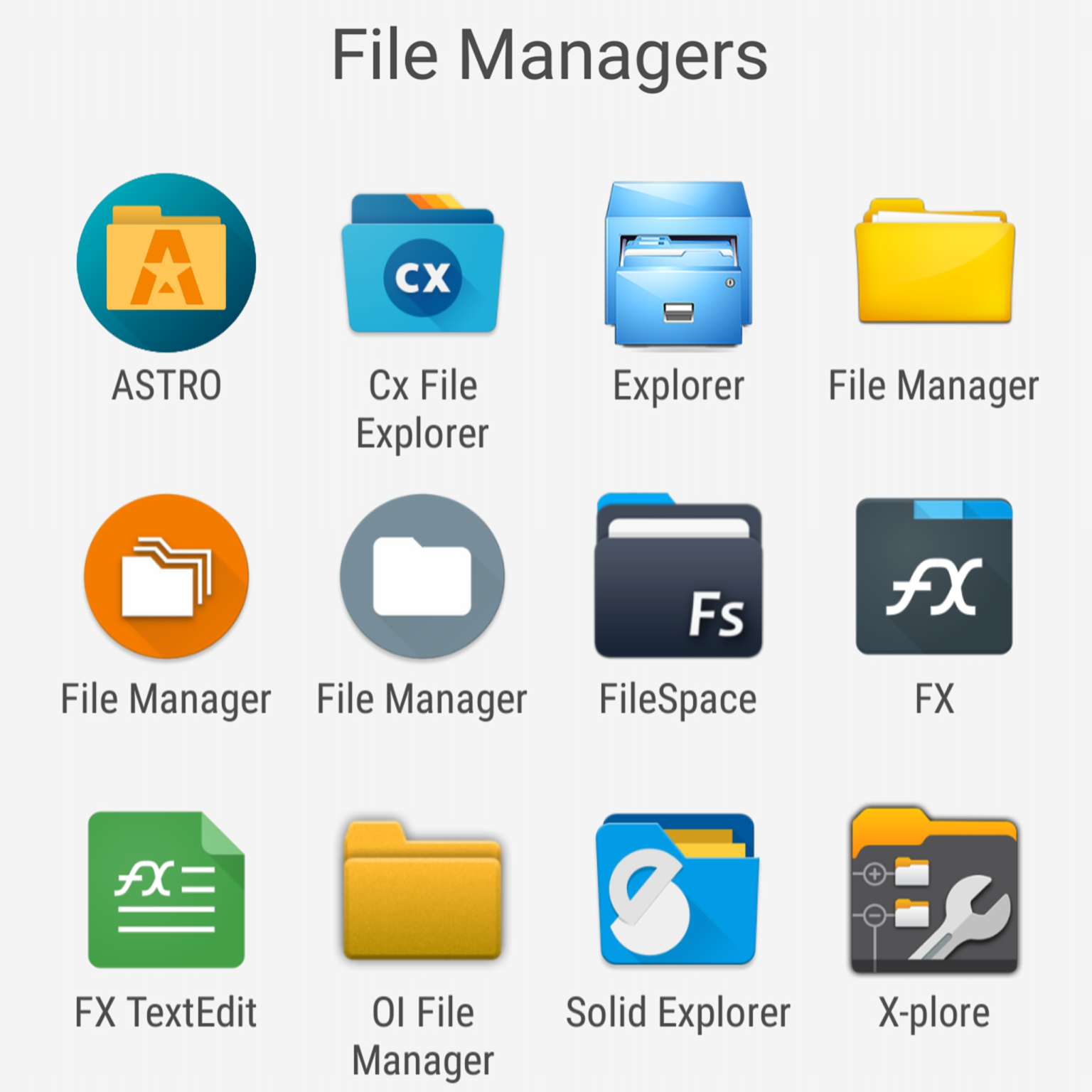
Sometimes, the built-in options feel a bit basic, like wearing your favorite comfy shirt that’s seen better days. That’s where third-party apps shine, adding flair and extra functionality. Apps like ES File Explorer or Solid Explorer bring in cool features such as cloud integration, which lets you link your Google Drive or Dropbox seamlessly. I once used ES to transfer a bunch of vacation photos to the cloud during a rainy day commute—it felt like cheating the system in the best way.
To compare a couple, here’s a quick table of popular options, because who doesn’t love a visual breakdown?
| App | Key Features | Best For |
|---|---|---|
| Files by Google | Simple interface, automatic cleanup, free | Beginners looking for ease |
| ES File Explorer | Advanced search, root access, cloud sync | Power users needing depth |
| Solid Explorer | Material design, themes, file compression | Customization enthusiasts |
Each one has its perks, and picking the right one is like choosing a playlist for a road trip—it depends on your mood and needs. If you’re into memes, think of these apps as the digital equivalents of that viral cat video that organizes your life one laugh at a time.
Optimizing Android Storage Space EffectivelyStep-by-Step Guide to Mastering File Organization
Alright, let’s get hands-on with a simple tutorial. I’ll walk you through basic file management using the built-in app, but feel free to adapt it to your third-party choice. Start by opening your file manager—it’s usually in your app drawer.
1First, navigate to the folder you want to organize, like your Downloads. Sort files by date or type to spot the clutter quickly.
2Select multiple files by long-pressing one, then tap others. Move them to appropriate folders, such as creating a new one for work docs if needed.
3Use the search function for anything specific—it’s like having a superpower. Finally, empty the trash to free up space and feel that sweet sense of accomplishment.
Creative Hacks for Android GamingThis process not only manages files on Android effectively but also prevents that overwhelming feeling when your storage is almost full. It’s like decluttering your room; once you’re done, everything flows better.
Pro Tips for Everyday Use
To keep things rolling smoothly, here are some relaxed tips I’ve picked up. Always back up important files before messing around—nothing’s worse than losing that family photo album. Also, enable auto-organization if your app offers it; it’s like setting your phone to tidy up while you sleep. And for a fun twist, tie it to a cultural nod: just as people in Japan practice the art of decluttering with KonMari, you can apply a similar spark-joy rule to your files—keep what matters, ditch the rest.
One more thing: if you’re into gaming or streaming, managing app caches can free up gigs of space. It’s a small habit that makes a big difference, especially with how apps like TikTok or Instagram gobble up storage.
Quick FAQ for Curious Minds
Q: Is Android file management safe for beginners? Absolutely, most apps are designed with user-friendly interfaces, so even if you’re new, you can start with basic functions without risking data loss.
Benefits of Android Multi-Window ModeQ: Can I recover deleted files? Yes, many file managers have a recycle bin feature, but act fast—files might be permanently gone after a certain period.
Q: What’s the difference between internal and external storage management? Internal is for core apps and data, while external (like SD cards) is great for media; managing both ensures balanced usage.
As we wrap up this chill exploration, think about how a little file tweaking can make your Android experience feel more personal and less chaotic. What if you turned file management into your secret productivity hack? Go on, give it a try and see how it transforms your digital life—it’s more rewarding than you might expect.