
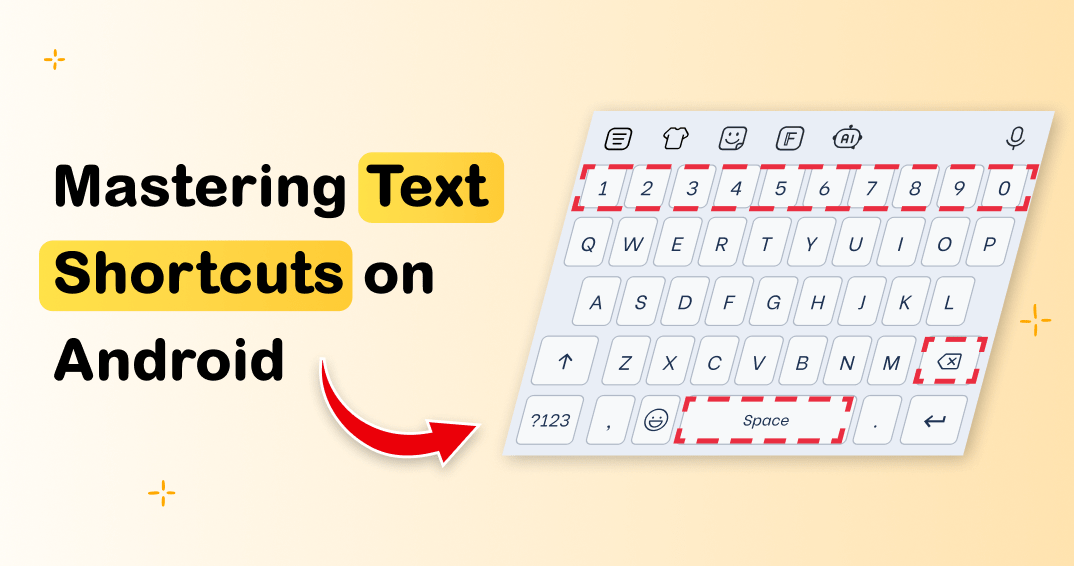
Ever feel like you’re wrestling with your Android phone just to type a quick message? I remember my first smartphone days – I’d be fumbling around, tapping icons like a caveman discovering fire, all while my friends zipped through their screens like pros. That’s when I stumbled upon keyboard shortcuts, and let me tell you, it was a game-changer. If you’re tired of the slow grind, mastering Android keyboard shortcuts can turn you into a digital ninja overnight. Stick around, and I’ll walk you through it all in a laid-back chat, sharing tips that feel like secrets from a buddy who’s been there.
Picture this: You’re in the middle of a heated group chat, and instead of hunting for that emoji, you just zap it in with a flick of your thumb. That’s the magic we’re diving into today. Android keyboard shortcuts aren’t just about saving time; they’re about making your device feel like an extension of your brain. From my own experiments, like turning a boring commute into a productivity spree, these tricks have saved me countless minutes. And if you’re into that viral meme culture, think of it as leveling up from the “struggle bus” GIF to the “boss level” one – pure satisfaction.
So, what’s the big deal with these shortcuts? Well, in a world where we’re all glued to our screens, efficiency matters. Keyboard shortcuts on Android streamline everything from texting to navigation, reducing taps and boosting your workflow. I once timed myself: without shortcuts, a simple email took twice as long. But once I got the hang of it, I was flying. This isn’t just tech talk; it’s about reclaiming your day, one key press at a time. If you’re curious, let’s break it down – no jargon, just straight-up advice.
The Lowdown on Why These Shortcuts Rock Your World
Alright, let’s get real – who wouldn’t want to shave off seconds from everyday tasks? Mastering Android keyboard shortcuts starts with understanding their perks. For starters, they cut down on repetitive actions, which is a lifesaver if you’re juggling apps like I do during my coffee-fueled mornings. Imagine swiftly switching keyboards or inserting symbols without digging through menus; it’s like having a secret weapon in your pocket. And here’s a fun fact: Android’s ecosystem, with its open-source roots, lets these shortcuts evolve, pulling from cultural nods like how gamers use hotkeys to dominate – think of it as your phone’s version of a power-up.
Optimizing Android Storage Space EffectivelyIn my early days, I overlooked these gems, sticking to the basics until a friend shared a hilarious story about autocorrect fails. That pushed me to explore, and boy, was I hooked. These shortcuts aren’t one-size-fits-all; they adapt to your habits, making Android feel personal. Whether you’re a student cramming notes or a parent managing kids’ schedules, they’ll add a layer of ease that feels almost poetic – like a well-timed joke in a conversation.
Essential Shortcuts to Get You Started Right Away
Okay, let’s roll up our sleeves and dive into the good stuff. First off, if you’re on a standard Gboard or Samsung keyboard, hitting the space bar twice adds a period – simple, but oh-so-handy for quick texts. Or, for emoji lovers, long-press the enter key to pop up your favorites. But wait, there’s more. To really master Android keyboard shortcuts, try this: 1 Open your keyboard in any app, then long-press the globe icon to switch languages or layouts effortlessly.
2 For cursor control, double-tap the space bar to jump to the end of a line – perfect for editing long messages without the drag. And if you’re into multitasking, swipe down from the keyboard to access the clipboard or quick settings. I remember using this during a family video call; it turned a chaotic setup into smooth sailing, earning me nods of approval.
To address the heart of your query: How to master Android keyboard shortcuts boils down to practice and personalization – start with these basics, experiment daily, and soon you’ll navigate your device like a pro, saving time on everything from emails to social posts. In about 50 words, it’s all about building familiarity through repetition, customizing settings to fit your style, and watching your efficiency soar, turning mundane typing into a seamless flow that enhances your daily routine.
Creative Hacks for Android GamingLeveling Up with Advanced Tricks and Customizations
Once you’re comfy with the fundamentals, it’s time to geek out a bit. Android’s flexibility shines here – for instance, enable gesture typing for swiping words instead of tapping, which feels like drawing a map with your finger. Or, if you’re on a Pixel device, use the dedicated shortcuts in settings to assign custom actions. Here’s a quick table to compare popular ones across devices, because not all Androids are created equal:
| Shortcut | Standard Android | Samsung Devices | Google Pixel |
|---|---|---|---|
| Switch Keyboards | Long-press globe icon | Swipe on space bar | Globe + swipe |
| Insert Emojis | Long-press enter | Emoji key direct | Search via Gboard |
| Cursor Movement | Double-tap space | Trackpad mode | Hold space for drag |
This comparison shows how tweaks can make a big difference, drawing from my own mix-ups between phones. It’s like comparing coffee brews – each has its flavor, but with practice, you’ll find your perfect cup.
Wrapping It Up with Real-World Wins
As we wind down, think about how these shortcuts weave into your life – maybe turning a rushed morning into a breeze or adding flair to your online chats. I’ve shared stories from my blunders to breakthroughs, hoping it sparks that “aha” moment for you. So, why not challenge yourself to try one new trick today? Who knows, you might just become the go-to tech whiz in your circle, unlocking a smoother Android adventure than you ever imagined.
FAQ
What are the most common Android keyboard shortcuts? The basics include long-pressing keys for symbols, double-tapping for periods, and swiping for gestures. These vary by keyboard app but generally speed up typing without extra taps.
Benefits of Android Multi-Window ModeHow can I enable keyboard shortcuts on my Android device? Go to Settings > System > Languages & input > Virtual keyboard, then select your app and tweak the preferences. It’s straightforward and customizable to your needs.
Are these shortcuts available on all Android versions? Most are, but newer ones like advanced gestures might need Android 11 or later. Always check your device’s update status for the latest features.