
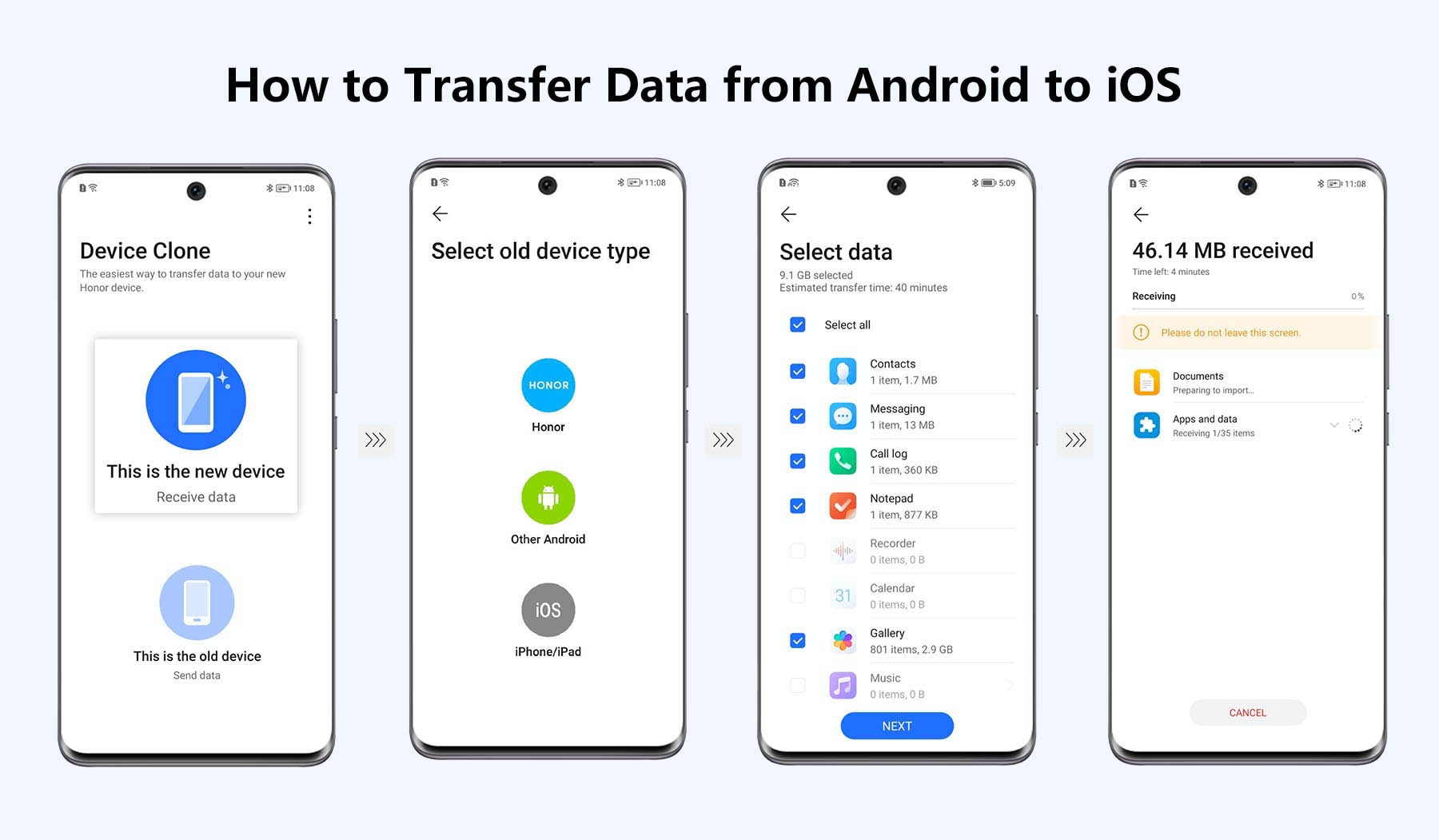
Ever switched to a new iPhone and felt that mix of excitement and overwhelm, like you’re unpacking a box of memories but forgetting where the charger went? Yeah, me too. Last year, when I upgraded from my trusty Android to an iPhone 14, I spent hours figuring out how to get all my photos, contacts, and apps over without losing a thing. It’s those little tech hurdles that make us human, right? So, if you’re diving into the iOS world and wondering about the top ways to transfer data, let’s chat about it in a laid-back way – no tech jargon overload, just straightforward tips that’ll make your life easier.
Transferring data to iOS doesn’t have to be a headache; it’s about seamlessly blending your digital life into Apple’s ecosystem. In essence, the best methods leverage tools like iCloud, iTunes, or even direct device connections to move everything from contacts and messages to photos and music. Whether you’re coming from another iPhone or a different platform, you can get it done quickly, often in under an hour, depending on your data size. This approach keeps your info secure and your new device feeling like home right away – think of it as giving your old phone a heartfelt goodbye hug.
One of the coolest things about iOS is how it handles transfers with that signature Apple polish. Picture this: you’re sitting on your couch, sipping coffee, and poof – your photos are syncing via the cloud. But let’s break it down into real, actionable steps. I’ll cover the top methods, sharing a bit from my own experience to keep things relatable. Remember, iOS is all about simplicity, so these aren’t rocket science; they’re more like easy recipes for a smooth transition.
The Magic of iCloud: Your Wireless Best Friend
iCloud is like that reliable pal who always has your back, effortlessly backing up and restoring your data without cables or fuss. It’s perfect for anyone upgrading within the Apple family. From my switch, I loved how it grabbed everything – emails, notes, even my podcast subscriptions – in one go. To start, make sure you have a stable Wi-Fi connection and enough iCloud storage (you get 5GB free, but upgrade if needed).
Comparing iPadOS and iOS differences1 On your old iPhone, go to Settings > [Your Name] > iCloud > iCloud Backup, and tap “Back Up Now.” Wait for it to complete – grab a snack in the meantime.
2 Set up your new iPhone, and when prompted, sign in with the same Apple ID. Choose “Restore from iCloud Backup” and select the most recent one. It’s that simple, and you’ll see your data populating like magic.
This method is super fast for smaller data sets, but if you’re dealing with heaps of videos, it might take a while. I remember chuckling at how my cat photos took priority – iOS just gets pets, doesn’t it?
Going Old School with iTunes: When You Need More Control
Sometimes, you want to feel that hands-on vibe, like manually sorting through your music library. That’s where iTunes (or Finder on Mac) shines, especially if you’re transferring from a non-Apple device. It’s a bit more involved, but hey, it’s like customizing your playlist – rewarding in the end. I used this for my old Android files, and it worked like a charm once I got the hang of it.
Ideas for creating iOS widgetsFirst, connect your old device or computer to your Mac or PC. If you’re on Windows, download the latest iTunes; on Mac, it’s built into Finder now. Here’s a quick rundown:
1 Open iTunes, select your device from the sidebar, and go to the “Summary” tab. Check “This computer” under Backups, then hit “Back Up Now.”
2 Once backed up, restore it to your new iPhone by connecting the new device, selecting it in iTunes, and choosing “Restore Backup.” Pick the right one, and sync away.
What’s great is you can cherry-pick what transfers, like avoiding duplicate contacts. It’s not as seamless as iCloud, but for folks who love tweaking settings, it’s a fun dive into iOS’s deeper features.
Benefits of using Apple Pay on iPhoneQuick Start and Other Tricks: For a Speedy Handover
If you’re trading up from another iPhone, Quick Start is like a high-five between devices – it uses Bluetooth and Wi-Fi to transfer data directly. I tried this with a friend’s old phone, and it felt like they were whispering secrets to each other. No need for a computer; it’s all wireless and intuitive.
To use it, just place your old iPhone near the new one during setup. Follow the on-screen prompts to scan a code or enter your Apple ID. Within minutes, your apps, passwords, and even wallpapers transfer over. It’s iOS at its most user-friendly, making you feel like a tech wizard without the effort.
| Method | Best For | Pros | Cons |
|---|---|---|---|
| iCloud | Wireless transfers between Apple devices | Easy, fast for small data, no cables needed | Requires storage space and internet |
| iTunes | Detailed control from non-Apple devices | Selective transfers, works offline | More steps, needs a computer |
| Quick Start | Direct iPhone to iPhone swaps | Quick and simple, maintains settings | Limited to recent iOS versions |
That table sums it up nicely – each method has its vibe, depending on your setup. Now, if you’re into iOS deeper, tools like the Move to iOS app can bridge the gap from Android, pulling in your WhatsApp chats or Google Photos with minimal fuss. It’s like iOS saying, “Welcome, we’ve got you covered.”
A Few iOS-Specific Tips to Smooth Things Out
While we’re on the topic, don’t overlook the little things that make iOS transfers shine, like ensuring your devices are updated to the latest iOS version for compatibility. I once forgot that and ended up with a quirky glitch – a reminder that even in the Apple world, preparation is key. Use these hacks to keep your data transfer feeling effortless and fun.
Solutions for common iOS storage issuesFAQs on Transferring Data to iOS
Q1: What’s the fastest way to transfer data to a new iPhone? The quickest method is using iCloud or Quick Start if you’re on the same network – it can take just minutes for basic data, though larger files might need more time. Always check your Wi-Fi strength first.
Q2: Can I transfer data from Android to iOS? Absolutely, the Move to iOS app makes it straightforward. It securely transfers contacts, messages, and photos, but you might need to handle some apps manually afterward.
Q3: Is my data safe during transfer? Yes, Apple prioritizes security with encryption in iCloud and iTunes, so your info stays protected. Just use a strong password and keep an eye on your backups.
As we wrap up this chat, think about how these transfers aren’t just about data – they’re about carrying your stories into a new chapter. Maybe next time you’re eyeing that shiny iPhone, you’ll dive in with confidence, ready to explore what iOS has in store. What’s your next tech adventure going to be?