
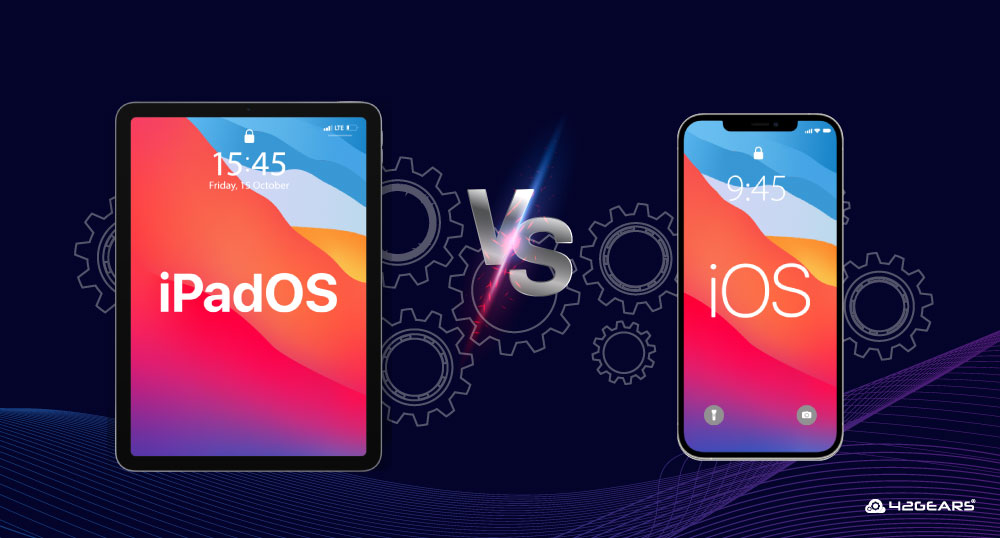
Ever since I upgraded to an iPad a couple of years back, I’ve found myself constantly switching between it and my trusty iPhone, wondering why things just feel a tad more expansive on the tablet. It’s like comparing a cozy studio apartment to a spacious loft – both are home, but one lets you spread out and get creative in ways the other doesn’t. If you’re knee-deep in the Apple ecosystem like I am, you might be curious about how iPadOS stacks up against iOS. Let’s dive into this casually, shall we? We’ll unpack the differences without getting too technical, keeping it light and practical for fellow Apple enthusiasts.
iPadOS vs iOS: The Core Differences Explained – Picture this: iOS is that reliable buddy who’s great for quick chats and on-the-go tasks, while iPadOS is like inviting that friend over for a full-blown brainstorming session. At its heart, iOS is optimized for the smaller screens of iPhones and iPods, focusing on touch gestures, notifications, and mobile apps. iPadOS, however, takes those elements and supercharges them for larger displays, introducing features that make your iPad feel less like a big phone and more like a portable workstation. This shift isn’t just about size; it’s about unlocking productivity in a way that feels intuitive yet powerful.
One of the standout aspects is how iPadOS handles multitasking. On iOS, you’re mostly juggling one app at a time, maybe with a quick slide-over for messages. But with iPadOS, you can split your screen into multiple windows, drag and drop files seamlessly, or even use Slide Over and Split View like a pro. I remember the first time I set up a writing session on my iPad – having my notes app side-by-side with my word processor was a game-changer, turning what could’ve been a frustrating hour into a smooth flow. If you’re into tutorials, think of iPadOS as the OS that teaches you to multitask without overwhelming you, perfect for those “how to” guides on productivity.
Exploring Multitasking Magic in iPadOS
Let’s get hands-on with this. iPadOS isn’t just an extension of iOS; it’s a fresh take that borrows the best bits and adds its own flair. For instance, the Home Screen on iPadOS lets you organize widgets in a grid, almost like customizing a dashboard for your day. iOS keeps it simpler with a linear app list. Then there’s the Files app – on iOS, it’s straightforward for managing documents, but iPadOS elevates it with external drive support and better file previews, making it ideal for tutorial creators who need to handle media files effortlessly.
Ideas for creating iOS widgetsIf we’re talking about apps, iPadOS versions are often optimized for the bigger canvas, supporting features like trackpad gestures or external keyboards right out of the box. This means apps can take advantage of the iPad’s screen real estate, offering tools that feel more desktop-like. Here’s a quick comparison to illustrate:
| Feature | iOS | iPadOS |
|---|---|---|
| Multitasking Options | App Switcher and basic Slide Over | Full Split View, Slide Over, and Stage Manager (on M1/M2 iPads) |
| Home Screen Customization | App icons and widgets in a grid | Expanded widgets and app library with more organization |
| App Experiences | Mobile-first design | Tablet-optimized with hover effects and pointer support |
| External Device Support | Limited to basics like AirPods | Full support for keyboards, mice, and USB drives |
This table isn’t just for show – it’s a real eye-opener for anyone diving into iOS tutorials. The differences highlight how iPadOS can turn your device into a creative hub, especially if you’re following along with video guides or step-by-step instructions.
Step-by-Step: Mastering iPadOS Features for Daily Use
Since we’re on the topic of tutorials, let’s walk through a simple setup to get the most out of iPadOS’s differences. This is perfect if you’re new to the OS and want to enhance your workflow.
1Open the Settings app on your iPad and navigate to “Home Screen & Multitasking.” Here, you can toggle on features like Allow Multiple Windows to enable Split View easily.
Benefits of using Apple Pay on iPhone2Try dragging an app from the Dock to the side of your screen to activate Split View. It’s that straightforward – no complicated menus, just pure, relaxed efficiency.
3For a deeper dive, connect an external keyboard and explore the new cursor controls. It’s like giving your iPad a secret upgrade, making it feel more like a laptop without the bulk.
The main differences between iPadOS and iOS boil down to enhanced multitasking, better external device integration, and a more expansive app ecosystem – all tailored for larger screens, making iPadOS ideal for creative pros or anyone who wants to turn their tablet into a productivity beast. This setup can seriously amp up your tutorial sessions, whether you’re learning photo editing or note-taking apps.
Why Pick iPadOS Over iOS for Your Workflow?
In my experience, iPadOS shines when you’re dealing with anything that requires space – like sketching ideas or watching tutorial videos without squinting. iOS is unbeatable for portability and quick tasks, but if you’re investing time in iOS tutorials, understanding iPadOS can open up new horizons. It’s not about one being better; it’s about matching the tool to the job, like choosing a sketchpad over a notebook for detailed drawings. Plus, with updates like Stage Manager on newer iPads, it’s evolving to feel even more versatile.
Solutions for common iOS storage issuesWrapping Up with a Thought on Your Next Move
As we wrap this up, imagine glancing at your device and seeing not just a screen, but a canvas for your ideas – that’s the vibe iPadOS brings. Whether you’re a tutorial junkie or just curious, experimenting with these differences might just spark that “aha” moment. So, what’s your pick for today’s tasks? Dive in and see how it reshapes your digital routine.
Quick FAQ
- What’s the biggest difference between iPadOS and iOS? The key distinction is iPadOS’s focus on larger screen optimizations, like advanced multitasking and external device support, making it more suited for productivity on tablets.
- Can I use iPadOS apps on iOS? Most apps are universal, but iPadOS versions often have enhanced features that don’t translate fully to iOS due to screen size limitations.
- Is iPadOS harder to learn for iOS users? Not really – it’s an evolution, so if you’re familiar with iOS, picking up iPadOS feels like upgrading to a better version of what you know, with intuitive tutorials built-in.