
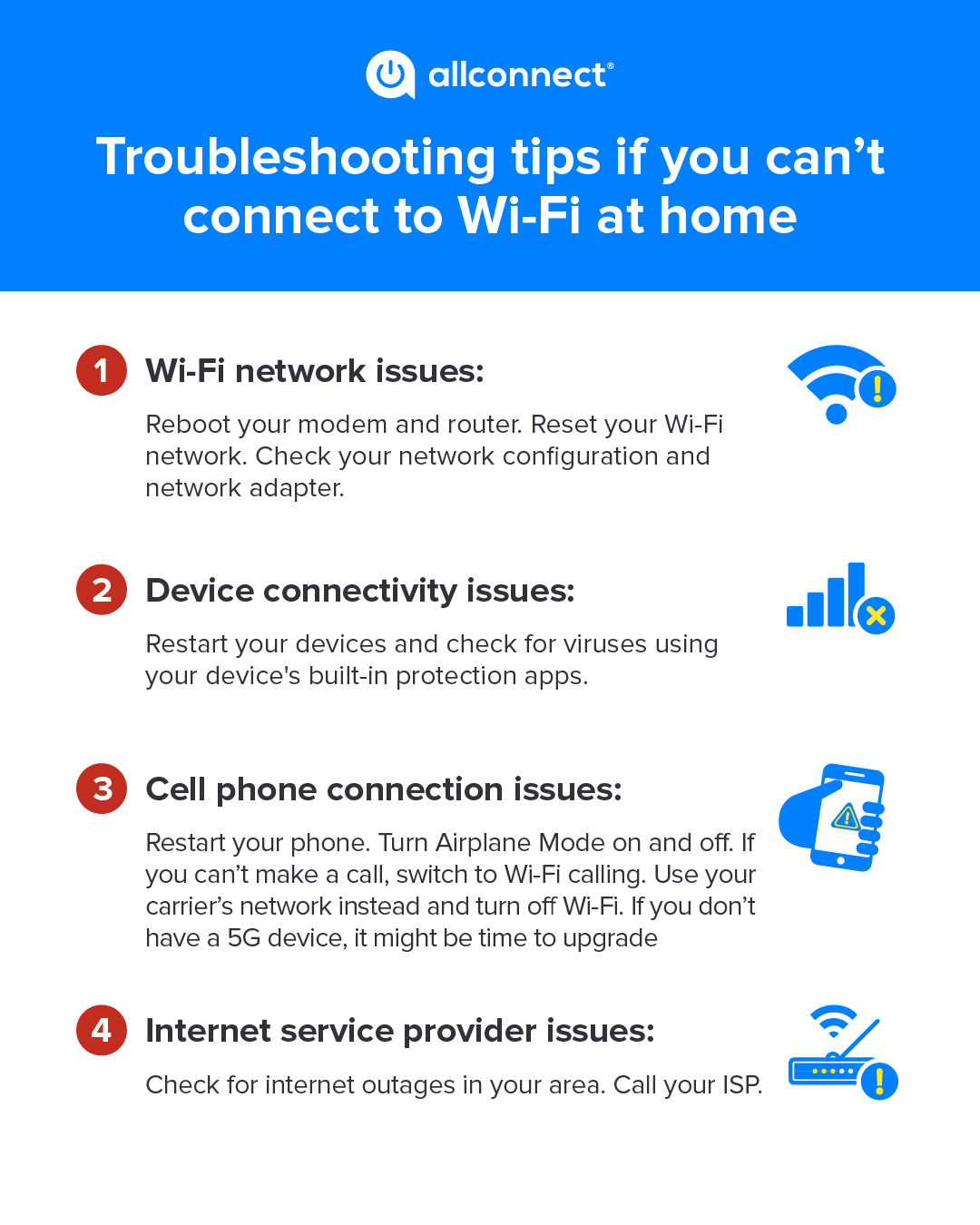
Ever been mid-scroll through your favorite social feed when your Wi-Fi suddenly pulls a vanishing act? It’s like that unreliable friend who bails just when the party’s getting good. I remember one evening, trying to join a virtual game night with buddies, only for my connection to drop faster than a bad joke. Frustrating, right? But hey, we’re in this together, and I’ve got some down-to-earth fixes for those pesky Wi-Fi hiccups that keep popping up. Let’s dive in and turn your wireless woes into a thing of the past, with straightforward tips that feel more like a chat over coffee than a tech manual.
If you’re dealing with frequent Wi-Fi connectivity issues, start by checking for simple culprits like router placement or interference from other devices. Restart your modem and router, update firmware, and ensure your network isn’t overcrowded—these steps often resolve drops quickly, getting you back online in minutes without needing a pro.
The Usual Suspects Behind Your Wi-Fi Meltdowns
Okay, let’s get real—Wi-Fi problems aren’t always as mysterious as they seem. From my own troubleshooting adventures, I’ve learned that these issues often stem from everyday stuff. Think about it: your router might be hiding in a corner, battling walls and appliances for signal strength. Or maybe neighboring networks are clashing in a digital turf war. Common Wi-Fi connectivity issues include signal interference, outdated hardware, or even bandwidth hoggers like too many smart devices streaming at once. It’s like trying to host a family dinner in a tiny kitchen—everything gets crowded and chaotic.
Drawing from a cultural nugget, remember those old-school radio waves? Wi-Fi operates on similar frequencies, so if your neighbor’s baby monitor is jamming the signal, it’s like a pop-up ad crashing your favorite show. According to recent stats, about 70% of home Wi-Fi problems tie back to environmental factors, not faulty equipment. So, before you blame your router, take a moment to assess your setup. Is it near a microwave or cordless phone? Those can disrupt signals like unexpected plot twists in a binge-worthy series.
Essential overview of domain name registrationStep-by-Step Hacks to Get Your Wi-Fi Back on Track
Alright, time for the fun part—rolling up our sleeves and fixing this. I’ll walk you through some solutions for frequent Wi-Fi connectivity issues in a relaxed, no-stress way. These aren’t rigid rules; they’re more like friendly suggestions from one internet user to another.
1First off, give your router a quick reboot. Unplug it for 30 seconds, then plug it back in. It’s like hitting the reset button on a bad day—it often clears temporary glitches and refreshes your connection without any hassle.
2Check your device’s Wi-Fi settings next. Sometimes, it’s as simple as forgetting and rejoining the network. On your phone or laptop, go to settings, select your Wi-Fi, and hit ‘forget’ before reconnecting. This can fix authentication errors that sneak in like uninvited guests.
3Move your router to a central spot, away from walls or electronics. Elevate it if you can—think of it as giving your signal room to breathe, like positioning the best speaker at a backyard BBQ. This simple tweak can boost range and reduce wireless connectivity problems dramatically.
Ways to optimize website loading times4If signals are still spotty, update your router’s firmware. Manufacturers release patches for security and performance, much like app updates that fix bugs in your favorite games. Head to your router’s app or website for instructions—it’s easier than assembling IKEA furniture, I promise.
A Quick Comparison of Wi-Fi Troubles and Their Fixes
Sometimes, visualizing the problem helps, so here’s a straightforward table to compare common Wi-Fi issues and their go-to solutions. It’s like a cheat sheet for your digital toolkit, keeping things light and informative.
| Problem | Possible Cause | Easy Fix |
|---|---|---|
| Intermittent drops | Interference from devices | Relocate router or change channel via settings |
| Slow speeds | Overloaded network or outdated hardware | Limit connected devices and upgrade router if needed |
| No connection at all | ISP outage or faulty cables | Check cables and contact your provider for outages |
This breakdown shows how tailoring your approach can make all the difference, turning a frustrating day into a quick win. And hey, if you’re into memes, think of your Wi-Fi as that friend who’s always “on their way” but never arrives—except now, with these fixes, it’ll show up on time.
Pro Tips to Keep Your Connection Smooth Sailing
Once you’ve nailed the basics, let’s chat about staying ahead of the game. In the world of internet tutorials, prevention is key, like wearing sunscreen before a beach day. Use a Wi-Fi analyzer app to spot crowded channels and switch to a less busy one—it’s a nifty tool that feels like having a backstage pass to your network’s performance. Also, secure your Wi-Fi with a strong password to ward off unwanted users, because nothing ruins a good connection faster than digital freeloaders. Remember, troubleshooting Wi-Fi isn’t just about fixes; it’s about building a reliable setup that adapts to your lifestyle, whether you’re working from home or streaming late-night shows.
Expert advice on avoiding phishing scamsAnd if you’re curious, I once turned my Wi-Fi around by simply tweaking the antenna angle—small changes, big impacts. It’s all about that personal touch, making your online experience as effortless as flipping through a playlist.
A Few Words on When Things Get Tricky
Not every fix is DIY, and that’s okay. If you’ve tried the steps and still face persistent frequent Wi-Fi problems, it might be time to loop in your ISP or a tech-savvy pal. Signs like consistent outages could point to hardware failures or service issues beyond your control—just like realizing you need a mechanic for that strange car noise.
As we wrap this up, imagine reclaiming those lost minutes from connectivity chaos—maybe finally finishing that online course or video call without interruptions. So, what’s your next move? Grab that router and give it a fresh start; your internet adventures await, smoother than ever.
FAQs on Wi-Fi Connectivity
Q1: Why does my Wi-Fi keep disconnecting at night? Often, it’s due to scheduled updates or increased network traffic from neighbors. Try setting your router to a less crowded channel or checking for firmware updates to stabilize it.
In-depth look at HTTPS versus HTTP protocolsQ2: Can a weak password cause connectivity issues? Absolutely—weak passwords might lead to unauthorized access, slowing things down. Use a strong, unique one to keep your network secure and running efficiently.
Q3: Is it worth buying a new router for these problems? If your router is over five years old, yes, as newer models handle more devices and offer better speeds. But start with the basics first to avoid unnecessary upgrades.