
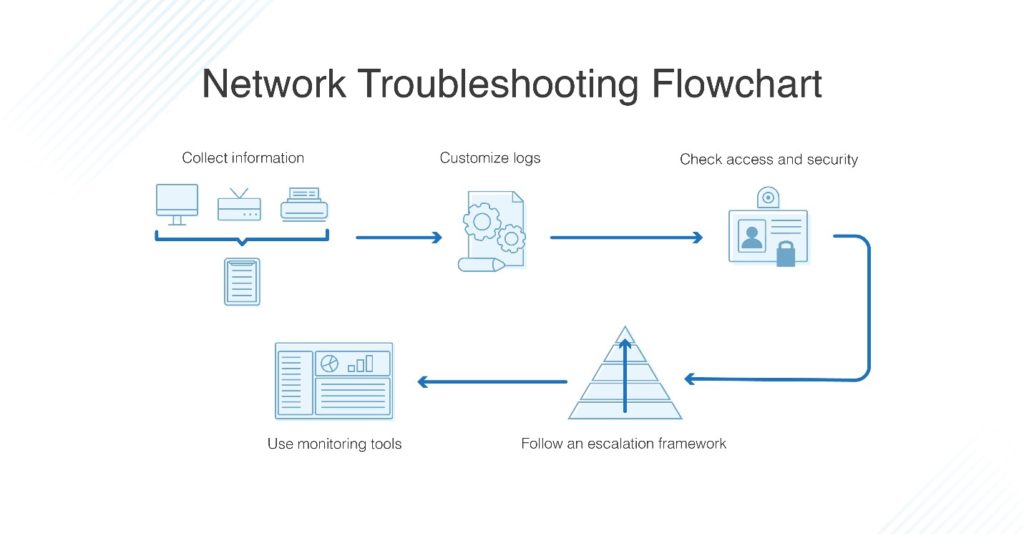
Ever had one of those days where your Wi-Fi just ghosts you mid-Netflix binge? I remember it vividly—last month, I was knee-deep in a thrilling episode when poof, the screen froze. Turns out, it was a simple router glitch, but man, did it throw me off. If you’re nodding along, you’re not alone; network hiccups are the uninvited guests at every digital party. Today, let’s chat about professional tips for network troubleshooting in a laid-back way, like we’re grabbing coffee and swapping stories. I’ll share some real-world hacks to get your connection back on track, drawing from my own tech tangles and a dash of insider know-how.
So, what’s the deal with fixing those pesky network issues? If you’re scratching your head over dropped signals or slow speeds, start here: Begin by powering down your modem and router for a full minute, then reboot. This simple reset often clears temporary glitches and restores stability, saving you from deeper dives. It’s that straightforward step many pros swear by, turning frustration into a quick win without needing fancy tools.
Alright, let’s break this down. First off,
Spotting the Usual Suspects in Network Mayhem
Network troubles aren’t always dramatic; they sneak in like a bad habit. Think about it—maybe your laptop’s acting up because the Wi-Fi signal is weak in that corner of your room, or perhaps an outdated driver is the culprit. I once blamed my internet provider for hours, only to find out it was a loose Ethernet cable under my desk. Common villains include interference from microwaves (yes, really), overcrowded networks, or even software conflicts. To spot them, grab your phone and run a speed test app; if speeds fluctuate wildly, it’s a sign something’s off. Using tools like ping commands can reveal latency issues, painting a clearer picture of what’s bogging things down.
Invaluable insights into firewall protectionNow, diving deeper,
Basic Steps to Get Things Flowing Again
Let’s keep it chill and walk through this like we’re fixing a flat tire together. Start with the fundamentals because, hey, sometimes the simplest fix is the most effective.
1Check all physical connections first. Wiggle those cables, ensure they’re snug, and look for any frayed wires—it’s amazing how a single loose plug can cause chaos.
2Restart your devices. Power off your router, modem, and computer, wait 60 seconds, then turn them back on in sequence. It’s like giving your network a fresh breath of air, often resolving temporary glitches without any drama.
Streamlined approaches to link building online3Scan for interference. Move closer to your router or switch to a less crowded Wi-Fi channel using your router’s app. Remember, your neighbor’s smart fridge might be stealing bandwidth, so positioning matters—a lot.
These steps form the backbone of network troubleshooting, and I’ve seen them turn tech novices into heroes overnight.
But wait, there’s more to it than just flipping switches.
Tools That Make Troubleshooting a Breeze
Imagine having a Swiss Army knife for your internet woes; that’s what the right tools feel like. For starters, apps like Wi-Fi Analyzer on your phone can show signal strength and channel conflicts, helping you avoid the digital equivalent of a traffic jam. If you’re into the geekier side, command-line tools such as “ipconfig” on Windows or “ifconfig” on Mac let you check your IP settings and flush DNS caches—think of it as peeking under the hood. And for a fun twist, tools like Wireshark offer a deeper look, though they might feel like overkill for everyday fixes. Here’s a quick comparison to keep things straight:
Core elements of responsive website design| Tool | Best For | Skill Level |
|---|---|---|
| Wi-Fi Analyzer | Signal strength and channel scanning | Beginner |
| ipconfig/ifconfig | Basic network diagnostics | Intermediate |
| Wireshark | Detailed packet analysis | Advanced |
This isn’t about overwhelming you; it’s about picking what fits your vibe. I started with basics and gradually leveled up, and you can too—it’s all about building confidence one connection at a time.
Moving on to
Pro Tricks for Tricky Situations
Once you’ve nailed the basics, let’s amp it up a notch. Ever dealt with a network that’s fine one minute and wonky the next? That could be firmware issues—updating your router’s software is like giving it a software spa day. Or, if you’re on a wired setup, try swapping cables or testing ports; it’s surprising how a faulty one can mimic bigger problems. A personal fave? Using VPNs to troubleshoot external interference, like when I discovered my home network was clashing with public hotspots. Keep an eye on your firewall settings too; they’re the gatekeepers, but they can block legit traffic if not configured right. These advanced network troubleshooting tips add that extra layer, making you feel like a tech wizard without the cape.
Of course, not every issue is DIY-friendly.
Steps for setting up a personal blog onlineWhen It’s Time to Tag in the Experts
Look, I’m all for rolling up your sleeves, but there’s no shame in calling reinforcements. If you’ve tried the steps and your network still acts up—like constant disconnections or security breaches—it’s probably best to loop in your ISP or a pro. I once ignored a persistent problem, thinking I could hack it, only to learn it was a hardware failure. Signs to watch for include unusual error codes or speeds that dip below what your plan promises. Think of it as knowing when to pass the ball in a game; sometimes, fresh eyes make all the difference.
As we wrap this chat, picture yourself conquering future network gremlins with ease, maybe even sharing your wins over that same Zoom call that once failed you. What’s your next move—grabbing those tools or diving into settings? Either way, you’ve got this; tech troubles don’t stand a chance against your newfound savvy.
FAQs
Q: How often should I troubleshoot my network? A: Aim for a quick check every few months, especially if you notice slowdowns, to catch issues early and keep things running smoothly without major disruptions.
Q: Can poor network performance affect my online security? A: Absolutely; slow speeds might indicate vulnerabilities, like outdated firmware, so regular troubleshooting helps maintain both performance and protection.