
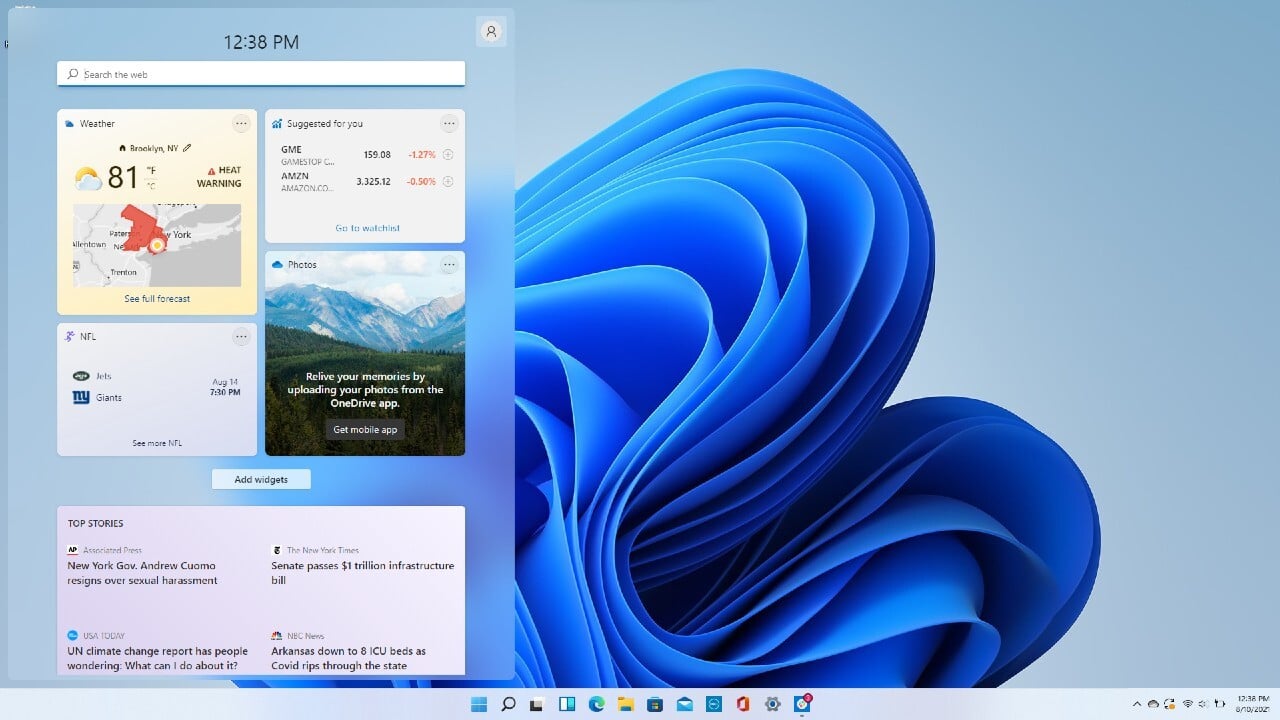
Ever stumbled upon those little boxes on your Windows desktop and thought, “Huh, what’s the big deal?” Yeah, me too. I remember the first time I fired up Windows 11 and saw those widgets pop up—it was like discovering a secret compartment in my everyday routine. At first, they seemed gimmicky, just another feature to ignore, but then I started tinkering, and whoa, did it change how I work and play. Today, we’re diving into some innovative ways to use Windows widgets, turning them from overlooked tools into your daily sidekicks. Let’s keep it chill, like chatting over coffee, and explore how these can make your Windows experience way more fun and efficient.
If you’re wondering how to jazz up your setup with Windows widgets, the key is personalization. Start by adding widgets for weather, stocks, or even your calendar, then tweak them to show exactly what matters most. This simple hack can transform your desktop into a dynamic dashboard, saving you time and keeping you in the loop without opening a dozen apps. In about 40 seconds flat, you’ll see why they’re a game-changer for staying organized and productive on Windows.
One of the coolest things about Windows widgets is how they let you customize your desktop without diving into complicated settings. Picture this: you’re a busy bee, juggling emails and meetings, and suddenly your widget lights up with a news update or a quick weather check. It’s like having a personal assistant whispering in your ear. I once set mine up to track my favorite team’s scores, and it turned my work breaks into mini-celebrations. To get started, just right-click your taskbar, hit “Widgets,” and explore the gallery. You’ll find options for everything from traffic alerts to fitness trackers—pure gold for making your day smoother.
Spice Up Your Workflow with Smart Customizations
Alright, let’s get a bit more hands-on. Customizing widgets isn’t just about aesthetics; it’s about making them work for you. For instance, if you’re into productivity, pair your to-do list widget with a calendar one. This way, deadlines pop up right on your screen, nudging you along without the overwhelm. I like to think of it as a digital nudge, like that friend who reminds you to eat lunch before you turn into a zombie at your desk.
Evaluating Windows for gaming performanceHere’s a quick step-by-step to amp up your widgets:
1Open the Widgets board by clicking the widget icon on your taskbar. It’s that easy—feels like unlocking a hidden level in a game.
2Browse through the available widgets and add ones that fit your vibe, like a news feed for staying current or a photo widget for a daily mood boost.
3Customize each one by clicking the gear icon—resize, rearrange, or link it to your Microsoft account for personalized data. It’s like tailoring a suit, but for your screen.
Streamline your workflow in WindowsAnd if you’re feeling extra creative, integrate them with other Windows features. Link a widget to your Edge browser for quick searches, or use voice commands if you’ve got Cortana set up. It’s these little innovations that turn a standard setup into something uniquely yours, almost like adding a personal stamp to your digital world.
Turn Widgets into Everyday Helpers
Now, let’s talk about the fun side—using widgets for more than just work. Ever wished your computer could remind you to hydrate or stretch? Well, with Windows widgets, you can. Set up a timer widget alongside a health tracker, and suddenly, your desk becomes a wellness hub. I recall experimenting with this during a long coding session; it kept me from burning out and added a touch of humor to my routine, like a virtual gym coach cheering me on.
To make it even better, compare different widget setups in this quick table. It’s not about overcomplicating things, but seeing how tweaks can enhance your experience:
| Widget Type | Basic Use | Innovative Twist |
|---|---|---|
| Weather Widget | Shows current forecast | Link to smart home devices for automated responses, like adjusting your thermostat |
| News Widget | Displays headlines | Customize feeds to focus on hobbies, turning it into a personalized discovery tool |
| Productivity Widget | Lists tasks | Integrate with apps like To Do for real-time updates and motivational quotes |
This setup shows how a simple widget can evolve into something innovative, blending seamlessly with your Windows ecosystem. It’s all about that “aha” moment when you realize how much time you’re saving.
Overcome Windows compatibility problemsUnexpected Perks and Creative Experiments
Sometimes, the best innovations come from playing around. Try stacking widgets for a custom dashboard—imagine a corner dedicated to family photos and another for work stats. It’s like building a collage of your life, right on your screen. I once shared a widget setup with a friend over a video call, and it sparked a whole conversation about our digital habits. That personal touch makes Windows feel less like a machine and more like a companion.
Wrapping up these ideas, think about how widgets can tie into broader Windows tutorials. For example, combining them with shortcuts or virtual desktops creates a powerhouse setup. It’s not just tech; it’s about making your day flow easier, with a nod to that relaxed vibe we all crave.
Frequently Asked Questions
Q: Can I add third-party widgets to Windows? A: Absolutely, but stick to the Microsoft Store for safety. It’s a straightforward process that lets you expand your options without messing up your system.
Q: How do widgets affect my computer’s performance? A: They’re designed to be lightweight, so if you’re on a decent machine, you won’t notice a hit. Just keep them updated to run smoothly.
Analyze the impact of Windows on businessAs we wrap this up, what’s the one widget tweak you’re itching to try? Go on, give it a shot and see how it reshapes your Windows world—might just surprise you with a smile.