
Ever had that moment where you’re all set to dive into a classic game or an old app, only to have Windows throw a compatibility curveball your way? Yeah, me too—last month, I tried firing up a relic from the early 2000s on my shiny new laptop, and it was like watching a comedy of errors unfold. But hey, we’re not here to dwell on the frustration; instead, let’s roll up our sleeves and tackle those pesky Windows compatibility problems with a laid-back vibe. I’ll walk you through it like we’re chatting over coffee, keeping things straightforward and human.
Overcoming Windows compatibility issues starts with understanding why they happen in the first place. It’s often about that gap between old software and new systems—think of it as your favorite band trying to play on outdated instruments. Windows evolves quickly, with updates like those in Windows 10 or 11 changing the rules, but your apps might not have gotten the memo. Directly addressing your main question: To overcome these problems, check for compatibility modes, update drivers, and run the Program Compatibility Troubleshooter—it’s a simple process that can fix most glitches in under 10 minutes, making your software run smoothly again without major headaches.
Why Compatibility Gremlins Show Up in the First Place
Picture this: You’re dealing with software designed for Windows XP, but now you’re on Windows 11. It’s like expecting a flip phone to handle TikTok videos—it’s just not built for it. These issues crop up due to differences in architecture, security settings, or even hardware requirements. I’ve seen friends pull their hair out over this, especially with creative tools or business apps that haven’t been updated in years. But don’t sweat it; recognizing the root cause is half the battle. For instance, a quick dive into Windows settings can reveal if your system is blocking an app because of newer security protocols, like those in the latest updates.
To keep it real, I once spent an afternoon debugging a compatibility snag with a photo editing program from the 90s. It was a nostalgia trip gone wrong, but learning about Windows’ built-in tools turned it into a win. Keywords like “Windows compatibility mode” or “app troubleshooting” are your best friends here—they’re not just buzzwords but actual lifesavers that pop up in searches when you’re in a pinch.
Analyze the impact of Windows on businessStep-by-Step Guide to Fixing the Mess
Alright, let’s get hands-on. I’ll break this down into easy steps, so you can follow along without feeling overwhelmed. Remember, we’re aiming for that relaxed fix, not a tech overhaul.
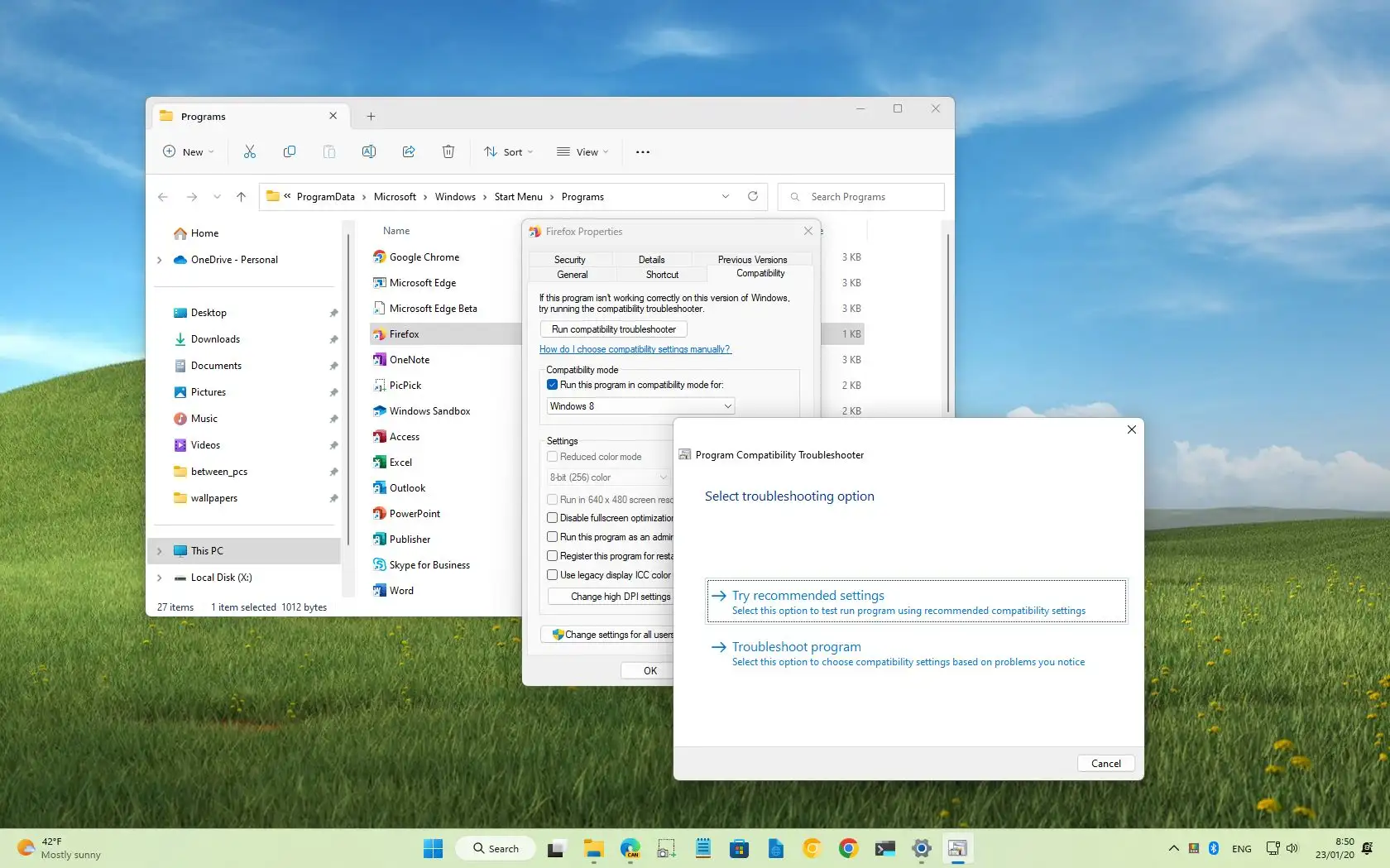
1Head to the Compatibility Troubleshooter: Right-click on the problematic app’s icon, select “Properties,” and then hit the “Compatibility” tab. Check the box for “Run this program in compatibility mode for” and pick an older Windows version from the drop-down. It’s like giving your app a time machine—simple and effective.
2Update your drivers and Windows itself: Go to Settings > Update & Security > Windows Update, and hit that “Check for updates” button. Outdated drivers, especially for graphics or sound, can cause major compatibility problems. Think of it as tuning up your car before a long drive—prevents breakdowns.
3Run the built-in troubleshooter: Search for “Troubleshoot settings” in the Start menu, then select “Additional troubleshooters.” Pick the one for “Program Compatibility” and let it do its thing. It’s almost like having a digital buddy spotting issues for you, which is a nod to how Windows has gotten smarter over the years.
Simplify Windows file sharing setupIf you’re dealing with something trickier, like games not launching, consider using the Windows Subsystem for compatibility—it’s a bit like borrowing tools from a neighbor. This isn’t always necessary, but for those deep dives, it adds another layer of fix without diving into code.
Pro Tips for a Smoother Windows Experience
Sometimes, it’s not just about fixing; it’s about preventing future headaches. For example, if you’re a fan of retro gaming, tools like virtual machines can simulate older environments—imagine running Windows 7 inside your Windows 11 setup, like a matryoshka doll of operating systems. But keep it light; not every problem needs a full tech stack.
In my experience, checking the Microsoft Store for updated versions of apps can save the day. It’s got that community vibe, with user reviews flagging common Windows compatibility issues. And here’s a fun twist: Reference a pop culture moment, like how characters in “The IT Crowd” would handle this with a simple restart—sometimes, that’s all it takes, but we know it’s more nuanced.
| Windows Version | Common Compatibility Fixes | Best For |
|---|---|---|
| Windows 10 | Use Compatibility mode and Troubleshooter | Modern apps and light gaming |
| Windows 11 | Update drivers and check for TPM requirements | High-end hardware and new software |
This table gives you a quick compare—see how Windows 11 might need extra steps for hardware-related fixes, while Windows 10 is more forgiving for everyday stuff.
Insider tips for Windows remote desktopKeeping Things Running Long-Term
Once you’ve sorted the immediate issues, think about maintenance. It’s like watering your plants regularly; neglect it, and problems sprout up. Regularly backing up files and monitoring system health through Task Manager can ward off future Windows compatibility problems. I like to throw in a metaphor here: It’s akin to that meme of keeping your digital life “duct-taped together,” but with actual solutions.
A Quick Dive into FAQs
FAQ
What causes most Windows compatibility issues? Often, it’s outdated software clashing with new OS features, like enhanced security in Windows updates. Updating the app or using compatibility mode usually resolves it quickly.
Can I avoid these problems altogether? Not entirely, but sticking to apps from the Microsoft Store and keeping your system updated minimizes risks, much like wearing a seatbelt for safer drives.
Contrast Windows with Linux environmentsIs it safe to use third-party tools for fixes? Yes, if they’re from trusted sources, but always start with built-in Windows tools to keep things simple and secure.
As we wrap this up, imagine unlocking that app you’ve been itching to use—what’s your next digital adventure going to be? Whether it’s revisiting old favorites or diving into new ones, you’ve got the tools now to make it happen without the drama.