
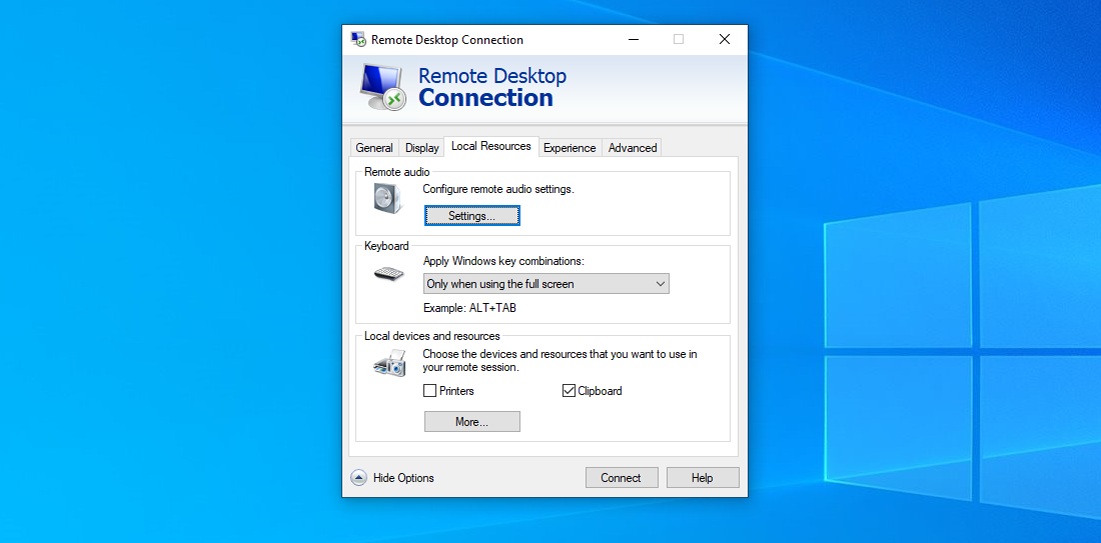
Picture this: I’m sitting in my cozy home office, coffee in hand, when suddenly my work laptop decides to play hard to get from miles away. That’s where Windows Remote Desktop swoops in like a trusty sidekick, letting me jump into my machine as if I never left the desk. It’s a game-changer for anyone juggling remote work, and trust me, I’ve got some insider tips that’ll make your sessions smoother than a well-oiled gadget. If you’re diving into the world of Windows tutorials, these hacks come straight from late-night troubleshooting sessions and everyday wins.
So, what’s the deal with insider tips for Windows Remote Desktop? Well, these are the hidden gems that go beyond the basics, helping you connect faster, stay secure, and troubleshoot like a pro without pulling your hair out. Think of it as upgrading from a basic remote access tool to a powerhouse that saves time and frustration—whether you’re a freelancer bouncing between devices or an IT whiz managing a fleet of computers. In about 50 words, these tips cover optimizing connections, enhancing security, and fixing common glitches to make your remote sessions reliable and efficient for everyday Windows use.
Why Remote Desktop Feels Like Your Digital Teleporter
Remote Desktop isn’t just a feature; it’s like having a magic portal to your PC, straight out of a sci-fi flick. I remember the first time I used it during a family vacation—my laptop was back home, but with a quick setup, I was editing files as if I were right there. For Windows users, it’s built right into the OS, making it a no-fuss way to access remote PC from anywhere. But here’s the insider scoop: most folks stick to the defaults, missing out on tweaks that turn it into a seamless experience.
To kick things off, let’s talk about getting connected without the usual headaches. Start by ensuring your target machine is on and set to allow connections—head to Settings > System > Remote Desktop and flip that switch. Remote desktop tips often overlook the simple joy of using the built-in Remote Desktop Connection app, which you can fire up by searching for “mstsc” in the Windows search bar. It’s intuitive, but for a Windows remote desktop newbie, adding a custom resolution in the app’s options can make your session feel tailor-made, avoiding that awkward stretched screen vibe.
Contrast Windows with Linux environmentsPro Tricks to Supercharge Your Sessions
Now, let’s amp it up with some real insider magic. One of my favorite hacks is tweaking the performance settings to cut down on lag—especially if you’re on a sketchy Wi-Fi connection, like that spotty hotel network I dealt with last year. In the Remote Desktop app, dive into the “Experience” tab and select your connection speed. For high-speed links, crank up the visuals; for slower ones, dial it back to prioritize speed over fancy graphics. This isn’t just tech talk—it’s about making remote access Windows feel as responsive as working locally.
Here’s where things get hands-on. If you’re setting up for frequent use, follow these steps to optimize your setup:
1Enable Network Level Authentication in your Remote Desktop settings for an extra layer of security—it’s like giving your PC a bouncer at the door.
2Use the command line to launch sessions with specific parameters; type “mstsc /v:computername /w:1280 /h:720” in the Run dialog for a custom window size that fits your screen perfectly.
Accelerate Windows boot times effectively3Set up port forwarding if you’re going through a router—forward port 3389 to keep things flowing smoothly, but remember to pair it with a VPN for that foolproof protection.
Ever feel like Remote Desktop is playing hide-and-seek with your files? Use the “Local Resources” tab to map drives and printers, turning remote work into a breeze. It’s reminiscent of those old memes about working from home—except now, you’re actually productive without the cat interruptions.
Troubleshooting the Usual Suspects
Let’s get real: even with all the tips, things can glitch. I once spent an hour staring at a “connection refused” error, only to realize it was a firewall setting. For Windows tutorials enthusiasts, knowing how to troubleshoot remote desktop is key. Start by checking the Windows Firewall—make sure Remote Desktop is allowed through private networks. If you’re on Windows 10 or 11, the updated firewall rules can be a bit finicky, so double-check under Advanced Settings.
To compare common issues across Windows versions, here’s a quick table that might save you some headaches:
Leverage Windows for creative projects| Windows Version | Common Issue | Quick Fix |
|---|---|---|
| Windows 10 | Connection drops frequently | Adjust power settings to keep the PC awake |
| Windows 11 | Authentication failures | Update to the latest build and enable TLS 1.2 |
| Older Versions (e.g., 7/8) | Compatibility with modern apps | Use the Remote Desktop client from newer Windows for better support |
This table highlights how Windows remote desktop evolves, but the core advice stays: keep your system updated to avoid those pesky errors that feel like digital gremlins.
Unlocking Hidden Features for the Pros
Diving deeper, there are features that feel like Easter eggs in a video game. For instance, the multi-monitor support in Remote Desktop lets you span sessions across screens, which was a lifesaver during my last project deadline. To enable it, just select the monitors in the Display tab before connecting—it’s that straightforward, yet so overlooked in basic remote desktop tips.
Another gem is integrating with Azure Virtual Desktop for cloud-based access, blending local and remote worlds seamlessly. If you’re into Windows tinkering, experiment with Group Policy edits for advanced configs, but tread lightly—it’s like seasoning food; too much ruins the dish.
FAQs for the Curious Minds
Is Windows Remote Desktop secure enough for sensitive work? Absolutely, with proper settings like encryption and two-factor auth, it’s as secure as your average VPN setup.
Resolve Windows printer connection errorsHow can I speed up a slow remote session? Try compressing the data stream in the app’s options or upgrading your network; it’s often just a bandwidth issue disguised as a tech problem.
What’s the best way to end a session without issues? Always log off properly instead of disconnecting to avoid locking up your remote machine—simple habits make a big difference.
As we wrap up this chat on Windows wonders, I’ll leave you with this: how will you use these tips to make your remote setup not just functional, but fun? Whether it’s breezing through work or exploring new tech horizons, it’s all about that effortless connection that keeps you one step ahead.