
Picture this: I’m slumped in my gaming chair, controller in hand, ready to dive into the latest epic quest, only to have my game stutter like it’s got two left feet. Yeah, that was me a few years back, cursing at my PC because Windows wasn’t playing nice with my favorite titles. If you’re nodding along, you’re in the right spot. Today, we’re diving into evaluating Windows for gaming performance, keeping things chill and straightforward, like chatting over a late-night gaming session.
So, what’s the deal with Windows and gaming? At its core, evaluating Windows for gaming performance means checking how your OS handles the heavy lifting—think rendering graphics, managing resources, and keeping everything smooth. Windows gaming performance boils down to tweaking settings so your setup runs games at their best without turning into a laggy mess. In about 50 words: To get top-notch gaming on Windows, focus on updating drivers, optimizing system resources, and fine-tuning graphics options for better frame rates and less stuttering—simple changes that can transform your playtime.
Why Windows Can Be a Gamer’s Best Friend (or Worst Enemy)
Let’s kick back and think about it—Windows isn’t just an OS; it’s like the stage manager of your gaming show. On the good days, it cues up everything perfectly for silky smooth gameplay. But if it’s not optimized, well, that’s when frames drop faster than hopes in a bad multiplayer match. From my own escapades, I remember switching from Windows 10 to 11 and feeling that instant boost, like upgrading from a rusty bike to a sleek motorcycle. It’s all about how Windows handles CPU, GPU, and RAM interactions, especially with features like DirectX that make games pop.
Culturally, gaming memes like the “It’s not a bug, it’s a feature” trope from Reddit threads hit home here. People share stories of Windows updates wrecking their setups, turning a boss fight into a slideshow. But hey, with a bit of evaluation, you can turn that around. Key elements include checking your version—Windows 11 often edges out 10 for gaming with better hardware acceleration—and monitoring background processes that hog resources, subtly stealing FPS like a thief in the night.
Streamline your workflow in WindowsDiving Deeper: The Core Factors That Matter
Alright, let’s get a little technical but keep it relaxed—no jargon overload. When you’re evaluating Windows for gaming performance, zero in on aspects like virtual memory settings and power plans. I once tweaked my virtual memory after reading a forum post, and bam, my open-world games loaded way faster. It’s fascinating how something as mundane as paging files can impact your immersive experiences.
Compare this to console gaming, where everything’s pre-optimized—Windows is more like a customizable sandbox. Factors to watch: latency from network settings if you’re online, or how DirectStorage in Windows 11 speeds up load times for massive game worlds. And don’t overlook the emotional side; poor performance can kill the joy of a story-driven game, making you feel disconnected, like watching a movie on a flip phone.
Step-by-Step: Optimizing Your Windows Setup
Now, for the hands-on part—let’s walk through some easy optimizations. I’ll keep this straightforward, like sharing tips with a buddy.
1Start by updating your drivers. Head to Device Manager, find your graphics card, and ensure it’s got the latest from NVIDIA or AMD. This alone can fix half your performance woes, trust me from personal trial and error.
Overcome Windows compatibility problems2Tweak power settings for high performance. Go to Settings > System > Power & battery, and set it to “Best performance.” It’s like giving your PC an energy drink before a marathon—simple but effective for maintaining steady frames.
3Manage startup programs via Task Manager. Kill off unnecessary apps that launch at boot—they’re the silent killers of your gaming performance on Windows. I cut mine down and gained back precious seconds in game loads.
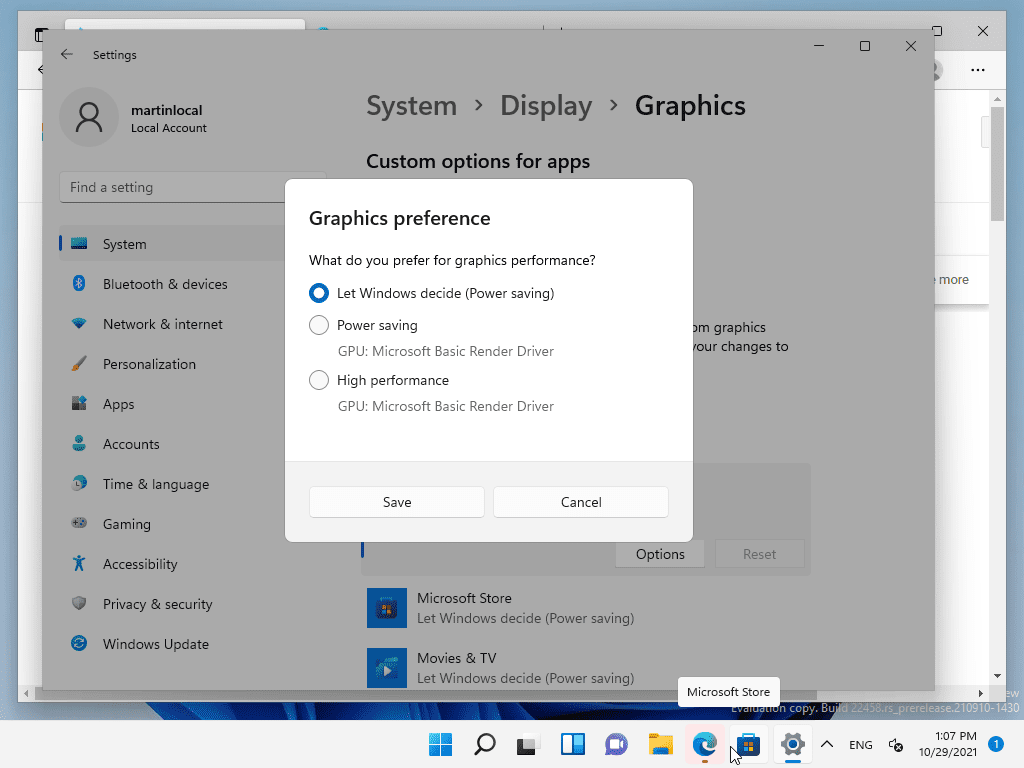
4Fine-tune graphics in the Windows settings or game launchers. For instance, enable hardware-accelerated GPU scheduling if you’re on Windows 11—it’s a game-changer for reducing input lag.
A Quick Comparison: Windows Versions for Gaming
To make this even clearer, here’s a simple table comparing Windows 10 and 11 for gaming needs. It’s not exhaustive, but it highlights the differences in a relaxed way.
Analyze the impact of Windows on business| Feature | Windows 10 | Windows 11 |
|---|---|---|
| DirectX Support | Up to DirectX 12 | DirectX 12 Ultimate for better ray tracing |
| Performance Boost | Good, but can feel dated | Faster with Auto HDR and DirectStorage |
| Resource Management | Standard efficiency | Improved with better multitasking |
This shows why upgrading might be worth it if you’re chasing those extra frames—it’s like going from a standard def TV to 4K.
Wrapping Up with Real Talk
As we ease out of this chat, think about how evaluating Windows for gaming performance isn’t just tech tweaks; it’s about reclaiming that pure joy of gaming. Maybe next time you’re in a virtual battle, you’ll notice the difference and share your wins online. What if you experimented with these tips and shared your story? It could inspire others in the community.
FAQ: Quick Answers
Q1: How often should I update Windows for better gaming? Aim for monthly updates, but right after a big game release, check immediately to catch any performance patches—it’s like keeping your gear sharp for the next raid.
Q2: Can overclocking hurt my Windows gaming setup? Absolutely, if not done carefully—it might boost performance short-term but risk crashes, so treat it like spicy food: fun in moderation.
Simplify Windows file sharing setup