
Picture this: you’re kicking back on a lazy Sunday, scrolling through old photos on your Windows PC, when suddenly—bam!—a glitch wipes everything out. Yeah, it’s happened to me, and let me tell you, it’s like losing a piece of your life story. That’s why I’m diving into strategies for backing up Windows data today, because nobody wants to relive that panic. We’ll keep things chill, like chatting over coffee, while covering the essentials to keep your files safe and sound.
In a world where our digital lives are packed with memories, work docs, and random cat videos, backing up Windows data isn’t just smart—it’s a lifesaver. Think about it: one wrong click or a rogue virus, and poof, your stuff vanishes. But here’s the good news—Windows has got your back with straightforward tools that don’t require a tech degree. If you’re nodding along, wondering how to get started without the hassle, let’s ease into it. A quick tip: always aim for a mix of local and cloud backups, so you’re covered no matter what.
Backing up Windows data boils down to creating copies of your files so you can restore them if disaster strikes. It’s that simple safeguard that lets you breathe easy. For instance, I once recovered my entire photo library after a crash using just a few clicks, and it felt like dodging a bullet. In about 50 words, here’s the core: By using Windows’ built-in features or third-party apps, you can automate backups to external drives or the cloud, ensuring your data stays protected against hardware failures, accidental deletions, or cyberattacks—peace of mind in a few steps.
Why You Should Care About Your Data’s Safety
Okay, let’s get real for a second. We’ve all heard horror stories about lost files, but it’s not just about the big stuff. Imagine misplacing that recipe your grandma emailed or the playlist that got you through tough times. Windows backup strategies aren’t about being paranoid; they’re about being prepared, like packing an umbrella on a cloudy day. According to a quick stat I dug up, over 30% of users have dealt with data loss, often from simple errors. So, whether you’re a casual user or a pro, starting with a basic backup routine can turn potential headaches into non-issues.
Common pitfalls in Windows networkingFrom my own experience, I remember backing up my laptop before a big move—it saved me when I spilled coffee on the keyboard. Windows makes this approachable with options that fit different lifestyles. If you’re into the cloud for its anytime access, or prefer something offline for privacy, there’s a strategy for you. And hey, it’s not all serious; think of it as giving your data a cozy backup blanket.
Simple Strategies to Get Started
Let’s keep it light and break this down without overwhelming you. First up, Windows has a nifty feature called File History. It’s like having a time machine for your files—super user-friendly and perfect for beginners. Here’s how to set it up, step by step, in that relaxed vibe we’re going for:
1Open Settings by hitting the Windows key + I, then head to Update & Security, and select Backup. It’s as easy as choosing your favorite snack.
2Plug in an external drive or select a network location. Windows will prompt you to turn on File History—go ahead and click that.
Enhance productivity with Windows tools3Customize what gets backed up, like your documents or pictures folder, and set it to run automatically. Boom, you’re done—your data’s on autopilot now.
This method is great for data backup for Windows because it’s built right in, no extra downloads needed. If you want to mix it up, consider OneDrive, Microsoft’s cloud service. It’s like having your files in a virtual backpack you can access from anywhere. I use it for sharing photos with friends, and it’s a game-changer for that seamless feel.
Leveling Up with Advanced Options
Once you’re comfy with the basics, let’s amp things up a notch, but still keep it breezy. For those who deal with hefty files or need more control, third-party tools like Acronis True Image or EaseUS Todo Backup offer robust features. These apps let you create full system images, meaning you can restore your entire PC, not just files—it’s like hitting the reset button without the drama.
To illustrate, I once used Acronis during a PC upgrade, and it felt like magic transferring everything over. Here’s a quick comparison to help you decide:
Unveiling hidden Windows features| Strategy | Pros | Cons | Best For |
|---|---|---|---|
| File History (Built-in) | Easy, free, automatic backups | Limited to certain file types | Beginners and everyday users |
| Cloud Services (e.g., OneDrive) | Access from anywhere, shares easily | Requires internet, potential costs for storage | Mobile users and collaborators |
| Third-Party Tools (e.g., Acronis) | Full system backup, advanced scheduling | May need purchase, steeper learning curve | Power users and businesses |
This table shows how each Windows data backup method has its charm, depending on your needs. Oh, and if you’re into pop culture nods, think of it like choosing between a basic phone backup or going full Iron Man with encrypted vaults—whatever floats your boat.
Tips for Making It a Habit
Alright, we’ve covered the how, but let’s talk about the why-it-sticks. Set reminders, like I do with calendar alerts, to check your backups monthly. It’s as routine as your coffee break. And for a fun twist, tie it to something you enjoy—back up after binge-watching your favorite show. That way, backing up Windows data feels less like a chore and more like a reward.
Common Pitfalls to Avoid
Just a heads-up: don’t forget to test your restores occasionally. I know, it’s tempting to set it and forget it, but verifying ensures everything works when you need it most. It’s like double-checking your backpack before a trip—small effort, big payoff.
As we wrap up this laid-back tour, imagine unlocking that peace of mind knowing your digital world is secure. What’s your next move—diving into File History or exploring the cloud? Either way, you’ve got the tools to keep your Windows data safe, so go ahead and make it happen.
Best practices for Windows maintenanceFAQ: Quick Answers to Backup Questions
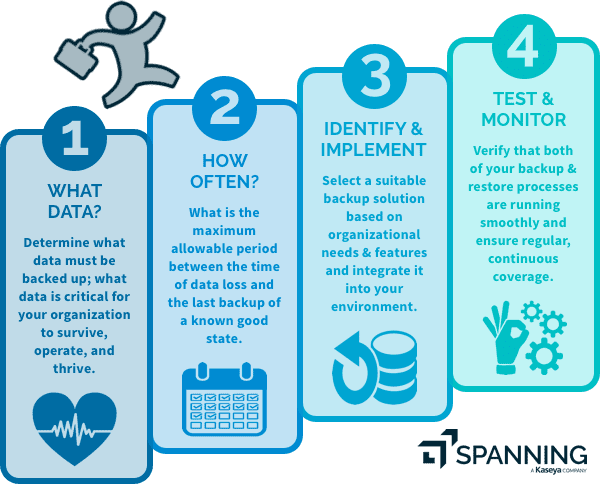
How often should I back up my Windows data? Aim for daily or weekly backups if you use your PC a lot, but at least monthly for light users. Automate it to make life easier.
Is cloud backup safer than external drives? It depends—cloud offers off-site protection against physical damage, but external drives are great for privacy. Use both for the best defense.
What if I forget my backup password? Most tools have recovery options, but always keep passwords secure and backed up themselves to avoid headaches.