
Picture this: I’m sitting at my desk, coffee in hand, trying to connect my laptop to the home network for a late-night binge of my favorite shows. But oh boy, Windows decides it’s the perfect time to throw a tantrum—nothing connects, error messages pop up like uninvited guests, and I’m left scratching my head. It’s moments like these that make you realize how sneaky those common pitfalls in Windows networking can be. If you’re nodding along, you’re not alone; we’ve all been there, wrestling with cables and settings that just won’t play nice.
Alright, let’s dive into the heart of the matter. Windows networking might seem straightforward, but it’s riddled with traps that can trip up even the most seasoned users. From my own escapades troubleshooting for friends and family, I’ve learned that avoiding these pitfalls isn’t about being a tech wizard—it’s about knowing where the landmines are buried. So, in about 50 words, here’s the straight scoop: Common pitfalls in Windows networking often stem from simple oversights like IP conflicts or misconfigured firewalls, which can halt connectivity and frustrate your setup. Spotting and fixing them early keeps your network humming smoothly without the drama.
To break it down without overwhelming you, I’ll walk through some of the usual suspects. These aren’t just dry facts; think of them as stories from the digital trenches, where a misplaced click can turn your day upside down. Remember that time a viral meme about Wi-Fi struggles went around? It’s like that—humorous on the surface, but it hits home for anyone dealing with Windows.
The Sneaky IP Address Clashes
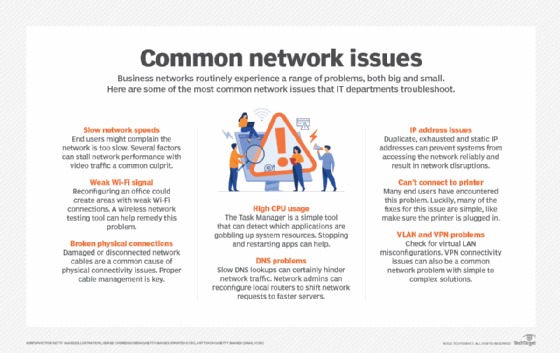
Ever had two devices on your network suddenly refuse to talk to each other? That’s often an IP conflict rearing its head, and it’s one of those classic blunders in Windows networking that feels like a bad comedy sketch. Imagine your printer and PC both claiming the same IP address; it’s like two friends showing up to a party in the same outfit—awkward and unproductive. In Windows, this can happen if you’re not using DHCP properly or if static IPs overlap.
Enhance productivity with Windows toolsTo sidestep this, here’s a quick guide: First, 1open the Network and Sharing Center by searching for it in the Start menu. Then, 2click on your active connection and hit “Properties.” Look for IPv4 settings and ensure they’re set to automatic if you’re using DHCP. If you’re assigning static IPs, double-check for duplicates—it’s that simple tweak that saves hours of headache.
Firewall Fumbles That Lock You Out
Windows firewalls are like overzealous bouncers at a club; they’re great for security but can block the very things you need. I once spent an evening locked out of my own shared files because the firewall was too strict, all while my dinner got cold. These fumbles often occur when third-party apps interfere or when rules aren’t configured right, leading to connectivity issues that make you question your tech skills.
In a more reflective moment, it’s fascinating how Windows has evolved its firewall features since the early days of XP. Back then, it was basic; now, with Windows 10 and 11, you’ve got advanced options that demand a bit more savvy. To fix common slip-ups, always check the Windows Defender Firewall settings—enable exceptions for trusted networks and apps. It’s not just about prevention; it’s about creating a safe space for your data to flow freely.
Wireless Woes and Signal Sabotage
Wireless networking in Windows can be a real love-hate relationship. One minute you’re streaming flawlessly, the next, your signal drops like a stone, especially in larger homes or offices. From my experience, interference from other devices or outdated drivers is the usual culprit, turning what should be seamless into a frustrating game of hide-and-seek.
Unveiling hidden Windows featuresFor a bit of variety, let’s compare this to everyday life: It’s like trying to have a conversation in a crowded room—too much noise, and nothing gets through. In Windows, ensure your Wi-Fi adapter is up to date via Device Manager, and tweak your router settings for better channel selection. Pro tip: Use the built-in Network Troubleshooter in Settings to diagnose issues; it’s like having a friendly mechanic under the hood.
| Pitfall | Common Cause | Quick Fix |
|---|---|---|
| IP Conflicts | Duplicate assignments | Switch to DHCP or verify static IPs |
| Firewall Blocks | Unchecked rules | Adjust exceptions in Windows Defender |
| Signal Drops | Interference or outdated drivers | Update drivers and optimize router |
Driver Dramas and Compatibility Chaos
Often overlooked, driver issues in Windows networking can sneak up like an unexpected plot twist in a movie. If your network adapter’s driver is outdated or incompatible, you’re in for sluggish speeds or total failures. I recall updating my system only to find my Ethernet port acting up—it was a driver mismatch that had me rebooting endlessly.
This ties into broader Windows tutorials where keeping everything current is key. Head to the manufacturer’s site or use Windows Update to refresh drivers, ensuring your hardware speaks the same language as your OS. It’s a small step that packs a big punch in maintaining reliability.
Security Oversights That Open Doors
Lastly, let’s not forget the security side—Windows networking pitfalls often involve lax settings that expose your system. Sharing folders without proper passwords or ignoring encryption can invite trouble, much like leaving your front door unlocked in a busy city. In a world where memes about hackers abound, it’s a reminder to stay vigilant.
Best practices for Windows maintenanceWrapping this up on a lighter note, think about how Windows has shaped our digital habits, from LAN parties in the 90s to remote work today. Avoiding these pitfalls isn’t just technical—it’s about reclaiming your time and sanity.
And here’s a fun twist to end on: What if your network could share stories of its own mishaps? Imagine the tales it would tell. But seriously, next time you’re tweaking settings, remember to back up your configs—it’s the unsung hero of smooth sailing.
FAQ
What causes frequent disconnections in Windows networking? Frequent disconnections are usually due to weak signals, interference, or faulty drivers. Start by checking your Wi-Fi settings and updating your network adapter for a more stable connection.
How can I secure my Windows network from common pitfalls? To secure it, enable the firewall, use strong passwords for shares, and keep your system updated. Regular scans with Windows Security can help catch vulnerabilities early.
Troubleshooting Windows blue screen issuesIs it worth troubleshooting Windows networking myself? Absolutely, especially with built-in tools like the Network Troubleshooter. It empowers you to fix issues quickly and builds your confidence for future tweaks.