
Ever had that moment when your iPhone turns into a buzzing beast, interrupting your favorite Netflix binge or a much-needed nap? Yeah, me too—it’s like the device has a mind of its own, constantly vying for your attention with those relentless pings. But hey, if you’re diving into the world of iOS, managing notifications doesn’t have to feel like herding cats. It’s all about tweaking those settings to reclaim your peace, and that’s exactly what we’re unpacking today with some pro tips for managing iOS notifications. Let’s keep it chill and practical, like chatting over coffee about how to tame that digital chaos.
Picture this: I was once at a family gathering, and my phone went off every five minutes with emails, texts, and app alerts. Everyone gave me that look, you know the one, like I was the main event instead of the conversation. That’s when I realized notifications aren’t just notifications—they’re gatekeepers to your focus. So, if you’re asking how to handle them like a pro, start by understanding that iOS notification management is about balance. In about 45 words: Customize your iPhone’s alerts to prioritize what matters, silence the noise, and enjoy uninterrupted moments by exploring settings for grouping, scheduling, and app-specific tweaks—it’s simpler than you think and can transform your daily flow.
Diving deeper, iOS packs a punch with features that make notification wrangling feel less like a chore and more like a personalized spa day for your device. Think of it as curating a playlist— you’re picking the hits and ditching the skips. One underrated gem is the Notification Center, which acts as your command hub. Swipe down from the top of your screen, and you’ll see everything lined up. But to really level up, let’s break it down with some hands-on advice. For instance, if you’re overwhelmed, start by customizing app notifications so only the essentials break through.
Why Notifications Can Be Your Best Friend or Worst Enemy
In a world where our phones are extensions of ourselves, notifications shape how we interact with tech. On one hand, they keep us in the loop—think timely reminders for appointments or urgent messages from loved ones. On the other, they can turn into a relentless stream that zaps your energy. I remember scrolling through a sea of red badges one groggy morning, feeling like I was playing whack-a-mole instead of starting my day right. The key? Leverage iOS’s built-in tools to make them work for you, not against you. For example, use the Focus modes to create custom profiles that mute distractions during work or bedtime, turning your iPhone into a supportive sidekick rather than a siren.
Hidden features in latest iOS versionsStatistically, studies show that constant alerts can fragment your attention, leading to what experts call “notification fatigue.” But with iOS 17 and later, Apple has amped up the options, like intelligent delivery that batches alerts. It’s not just tech; it’s a cultural shift, mirroring how we crave mindfulness in an era of TikTok scrolls and endless emails. So, embrace that by exploring the Settings app—head to Notifications and scroll through the list. You’ll find ways to manage iOS alerts by toggling banners, sounds, and badges per app, making your experience as unique as your favorite meme.
Essential Tips to Tame the Tide
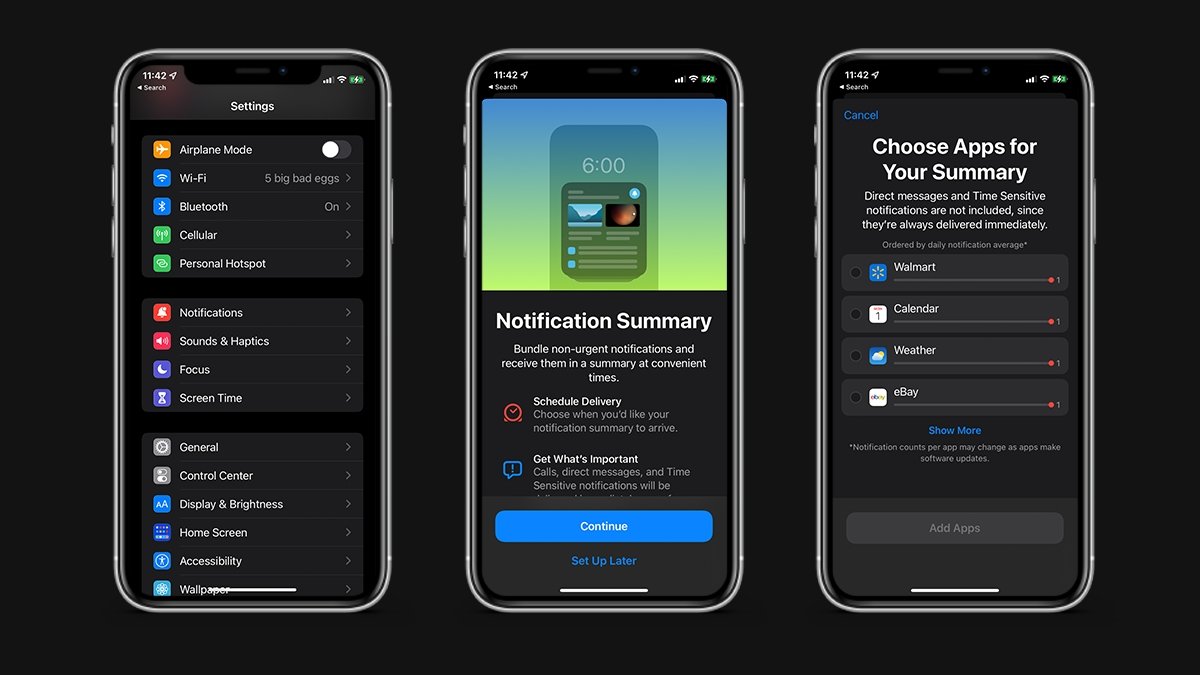
Alright, let’s get into the nitty-gritty with some straightforward steps. First off, if you’re new to this, open your Settings app and tap on Notifications. From there, you can dive into specifics for each app. Here’s a quick guide to get you started:
1Select an app, like Messages, and choose how you want alerts to appear—maybe just a banner or no sound at all to keep things quiet.
2Enable “Deliver Quietly” for less critical apps; it’s like whispering instead of shouting, perfect for social media that doesn’t need to interrupt your flow.
Easy fixes for iPhone connection problems3Group notifications by app to avoid that avalanche effect—iOS can bundle them up, so you’re not swiping through a dozen individual pings.
This isn’t just about silencing everything; it’s about creating a rhythm that matches your life. For me, grouping notifications turned my chaotic mornings into smooth sails, letting me tackle emails in one go rather than piecemeal. And if you’re into visuals, compare this to organizing your playlist: just as you wouldn’t play every song at once, don’t let every alert fire off willy-nilly.
Advanced Hacks for Power Users
Once you’ve nailed the basics, level up with some pro moves. Ever heard of the Do Not Disturb feature? It’s like putting up a “Do Not Enter” sign for your phone. In Settings under Focus, you can schedule it to activate automatically, say from 10 PM to 7 AM, ensuring your sleep isn’t sabotaged by late-night emails. Plus, with iOS’s automation, link it to your location—like silencing notifications when you’re at the gym. It’s a game-changer, drawing from everyday scenarios where we all need that buffer zone.
To add some flair, let’s throw in a quick table comparing popular notification modes. This isn’t rocket science, but it highlights how each one fits different lifestyles:
What you need to know about App Store| Mode | Best For | Key Features |
|---|---|---|
| Do Not Disturb | Bedtime or meetings | Silences calls and alerts; allows repeats from favorites |
| Focus (Personal) | Work sessions | Custom filters; app-specific allowances |
| Notification Summary | Daily reviews | Batches alerts for a cleaner feed |
See? Options like these make iOS tips for notifications feel empowering, almost like you’re the DJ of your digital life. And if you’re feeling creative, tie this to pop culture—imagine your notifications as extras in a movie; you don’t need the whole cast interrupting the plot.
Daily Hacks to Keep It Fresh
Incorporating these tips into your routine is where the magic happens. Review your notification settings every few weeks, just like checking in on a houseplant to keep it thriving. For instance, if you’re an early bird, set up a morning summary so you’re not bombarded right away. Or, use the Lock Screen editing feature to prioritize widgets over alerts, keeping your home screen zen-like. It’s these small, thoughtful adjustments that build a narrative of control, turning potential stress into a smooth sail through your day.
Wrapping up this journey, I can’t help but wonder: what’s one notification that’s changed your day for the better? Maybe it’s that reminder to call a friend or the alert for your favorite band’s new drop. Either way, with these pro tips for managing iOS notifications, you’re set to craft a more harmonious tech relationship.
FAQs
What if I miss important alerts after customizing? Don’t worry—iOS lets you set exceptions for key contacts or apps, so critical stuff still gets through while the rest stays muted.
Exploring iOS accessibility optionsCan I manage notifications on older iOS versions? Absolutely, though features like Focus are newer; basics like silencing apps work on iOS 12 and up, giving you a solid start.
Is there a way to undo changes easily? Yes, just revisit Settings > Notifications and tweak back—it’s intuitive, so experimenting won’t lock you out of anything important.