
Ever had one of those days where you’re clicking through the same old Windows tasks over and over, feeling like a robot in a bad sci-fi flick? Yeah, me too—that’s until I stumbled upon Windows PowerShell and turned my digital drudgery into something almost fun. It’s like discovering a secret shortcut in a video game; suddenly, you’re zipping past levels you thought were endless. Today, we’re diving into the fundamentals of Windows PowerShell scripting, keeping things light and breezy, because who says learning tech has to be a chore?
If you’re new to this, picture PowerShell as your computer’s trusty sidekick, ready to automate the mundane so you can focus on the cool stuff. It’s built right into Windows, evolving from the old Command Prompt into a powerhouse for scripting and managing everything from files to servers. In a nutshell, Windows PowerShell scripting fundamentals boil down to mastering basic commands, variables, and logic to streamline your workflow—think of it as teaching your PC to handle repetitive jobs while you kick back with a coffee. This hands-on approach can save you hours, making it a game-changer for anyone knee-deep in Windows tutorials.
Let’s get real for a second: I remember my first encounter with PowerShell. I was trying to rename a bunch of files manually, cursing under my breath, when a friend mentioned scripting. It felt like unlocking a cheat code. So, if you’re itching to learn PowerShell basics, here’s a direct answer to what you might be asking: Windows PowerShell scripting fundamentals involve getting comfy with cmdlets (those are like mini-commands), using variables to store data, and stringing them together in scripts for automation. It’s straightforward once you start, turning complex tasks into simple, repeatable actions that make your Windows experience way more efficient—about 40-50 lines of code can often do what’d take you ages clicking around.
Why PowerShell Feels Like a Breath of Fresh Air in Windows Land
Diving deeper, PowerShell isn’t just another tool; it’s a full-fledged scripting language that speaks the language of Windows. Unlike the rigid old CMD, it’s object-oriented, meaning you deal with actual data objects rather than plain text outputs. This makes it ideal for Windows automation scripting. Imagine you’re organizing a messy folder—PowerShell lets you sort, filter, and manipulate files with commands that feel intuitive, almost conversational. For instance, using Get-ChildItem is like asking Windows, “Hey, show me what’s in this directory,” and it responds with detailed info you can tweak on the fly.
Enhance Windows graphics with updatesOne thing I love is how it ties into the broader Windows ecosystem. Whether you’re on Windows 10, 11, or even Server editions, PowerShell is there, ready to bridge gaps between apps and systems. It’s not just about scripting; it’s about building a smarter workflow. And here’s a fun twist: think of it like those viral TikTok hacks where people shortcut everyday tasks—PowerShell does that for your computer, pulling in elements from .NET and PowerShell modules to extend its capabilities far beyond basics.
Getting Your Feet Wet with Essential PowerShell Commands
Alright, let’s ease into the good stuff. Start by opening PowerShell—hit the Windows key, type “PowerShell,” and launch it. No need for fancy setups; it’s pre-installed. Begin with simple commands to build confidence. For example, type Get-Command to list available cmdlets; it’s like peeking into a toolbox full of gadgets. Then, try Get-Help followed by a command name, say Get-Help Get-Process, and it’ll spill the beans on what that command does—super helpful for beginners.
To make this more engaging, let’s compare it quickly to everyday life. Using cmdlets is akin to having a Swiss Army knife versus a single tool; you get versatility. Here’s a quick table to visualize how PowerShell stacks up against the classic Command Prompt:
| Feature | Command Prompt | PowerShell |
|---|---|---|
| Output Type | Text-based | Object-based (rich data) |
| Scripting Power | Basic batch files | Advanced scripts with loops and variables |
| Integration | Limited to DOS commands | Seamless with Windows APIs and .NET |
This comparison shows why PowerShell is the go-to for modern Windows scripting tutorials. Now, if you’re ready to script, let’s walk through a basic example.
Manage Windows updates automaticallyStep-by-Step: Crafting a Simple Script
As we get into the nitty-gritty, remember, scripting is like telling a story—start small and build up. Here’s how to create a script that lists and deletes old files, keeping things tidy on your Windows machine.
1Open Notepad or your favorite text editor and type this line: Get-ChildItem C:PathToFolder | Where-Object {$_.LastWriteTime -lt (Get-Date).AddDays(-30)} | Remove-Item. This command finds files older than 30 days and zaps them.
2Save the file with a .ps1 extension, like cleanup.ps1. Then, in PowerShell, navigate to that folder with Set-Location C:YourScriptFolder.
3Run the script by typing .cleanup.ps1. Boom—your folder’s cleaner than a fresh install. Always test first to avoid mishaps; it’s like double-checking before hitting send on an email.
Windows task manager explainedVariables add another layer of magic. For instance, $files = Get-ChildItem lets you store results and manipulate them, turning your script into a dynamic tool rather than a one-off command.
Navigating Common Hiccups with a Smile
Let’s keep it real: scripting isn’t always smooth. You might hit errors like permission issues or syntax slip-ups, but that’s part of the fun—it’s like debugging a puzzle. A tip? Use Try-Catch blocks to handle errors gracefully, so your scripts don’t crash and burn. For example, wrap commands in Try { } Catch { Write-Host “Oops, something went wrong!” } to add some resilience.
In the spirit of Windows tutorials, mix in modules like ActiveDirectory for advanced tasks, but stick to basics here. Remember, PowerShell’s community is gold—forums and docs are full of shared stories, like how one scripter automated their entire backup routine, freeing up weekends for hobbies.
Where to Go from Here in Your Scripting Adventure
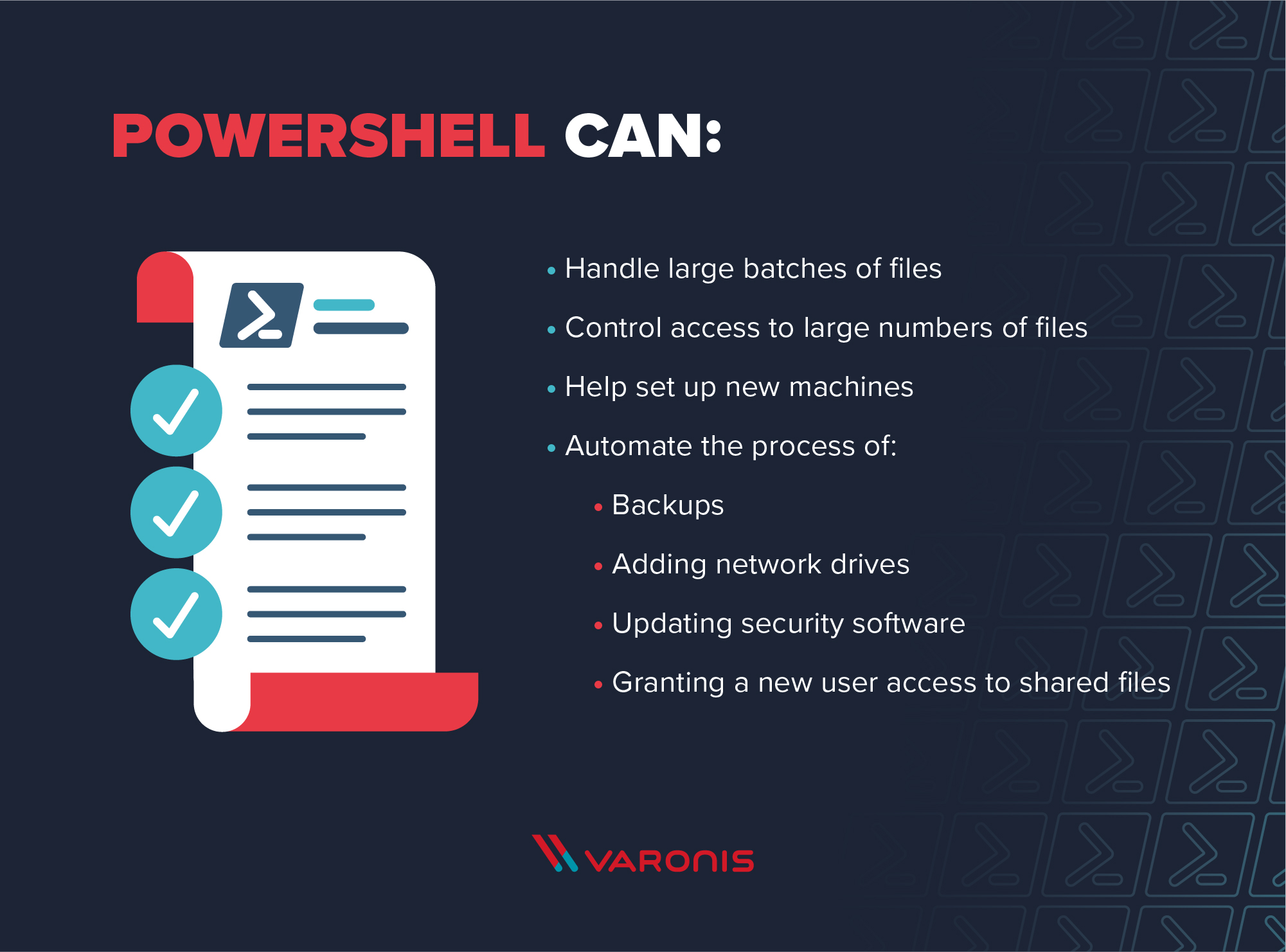
As we wrap up this laid-back tour, think about how PowerShell fundamentals can spice up your daily grind. Maybe you’ll automate software installs or monitor system health—sky’s the limit. It’s not just about code; it’s about reclaiming your time in a world of endless tabs and updates.
Set up dual monitors in WindowsFrequently Asked Questions
Is PowerShell only for advanced users? Not at all! It’s designed for everyone, from beginners to pros. Start with simple commands and build from there—it’s like learning to ride a bike, wobbly at first but empowering once you get it.
How does PowerShell differ from other scripting languages? While languages like Python are great for general tasks, PowerShell is tailored for Windows, offering direct access to OS features and making it ideal for admin work without extra setup.
Can I use PowerShell on non-Windows systems? There’s PowerShell Core for cross-platform use, but for true Windows scripting fundamentals, stick with the native version to leverage all its Windows-specific powers.
Ever think about how a few lines of code could change your tech routine? Go on, fire up PowerShell and see what you can create—your future self will thank you.