
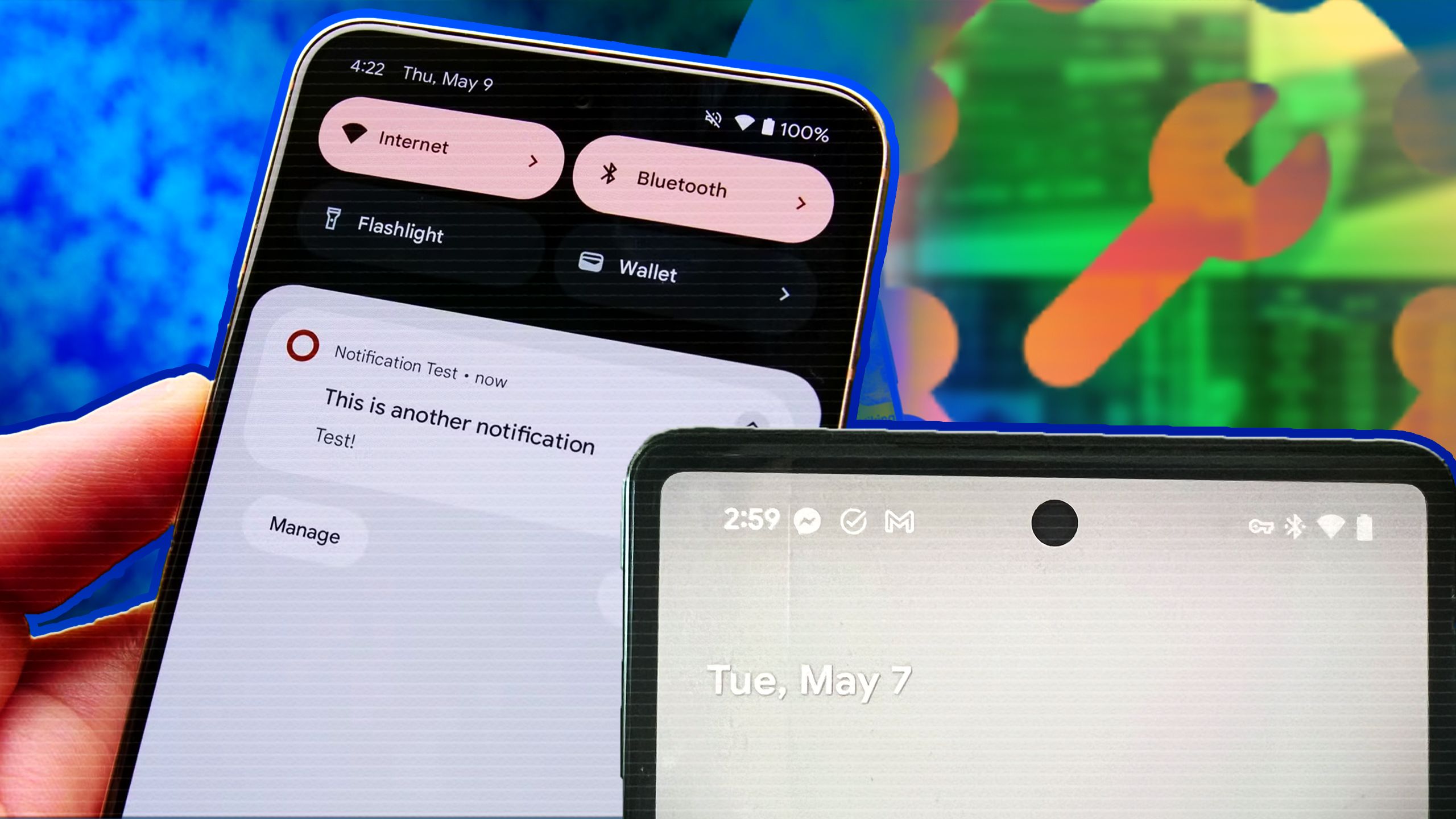
Ever had that moment when your phone decides to play hide-and-seek with your notifications? You know, you’re waiting for that important email or text, and suddenly, poof—nothing shows up. Yeah, I’ve been there too, staring at my Android screen like it’s got a mind of its own. It’s frustrating, but hey, let’s turn this into a chill chat about fixing those pesky Android notification glitches. I’m no robot; I’m just a fellow tech enthusiast who’s navigated these waters, and I’m here to share some real, laid-back tips that actually work.
If you’re scratching your head over why your Android notifications are acting up, the quick fix boils down to checking settings and permissions first. **Solutions to Android notification glitches** often involve tweaking app-specific options or restarting your device, which can resolve issues in under five minutes. This straightforward approach helps restore those missing alerts without diving into complex tech jargon, making your phone feel reliable again—just like flipping a switch on a finicky light bulb.
Picture this: I was on a road trip last summer, relying on my phone for navigation updates, when suddenly, notifications vanished. It was like my apps went on strike. That experience pushed me to dig deeper, and what I found were simple tweaks that saved the day. So, let’s break it down casually, starting with the most common culprits. We’ll keep it light, no overwhelming lists—just practical advice to get you back in control.
Spotting the Usual Suspects in Android Notification Woes
Android phones are awesome, but let’s face it, notification glitches can sneak in like uninvited guests at a party. From apps not vibrating to sounds playing on mute, these issues often stem from software updates or forgotten settings. Think about it: every time you update your OS, it’s like rearranging furniture in your digital home, and sometimes things get misplaced.
Essential Tips on Android Backup MethodsFor instance, if you’re on a newer version like Android 13 or 14, you might notice **Android notification problems** linked to battery optimizations. These features are meant to save power, but they can silence alerts from apps you actually need. A quick scan through your settings can reveal if an app is being dozed off prematurely. It’s all about balance—keeping your battery happy without muting your life’s soundtrack.
Step-by-Step Hacks to Fix Those Glitchy Alerts
Alright, let’s roll up our sleeves and get into the fixes. I’ll walk you through this like we’re fixing a bike together—no rush, just steady progress. Remember, these steps are tailored for most Android devices, but always check your specific model for variations.
1First off, head to your Settings app and tap on Apps or Apps & notifications. Scroll to the problematic app, like your email or messaging one, and select it. Look for **Notification settings** and make sure it’s toggled on. If it’s grayed out, that might be the glitch—time to enable it and see the magic happen.
2Next, dive into Permissions. Sometimes, apps lose their notification privileges. Go back to Settings, find Permissions, and check if the app has access to notifications. If not, grant it—it’s like giving your friend the green light to buzz you. Pro tip: If you’re on a Samsung or Google Pixel, there might be an extra layer called “Do Not Disturb” mode; double-check that’s not silencing everything.
Exploring Android Developer Tools3Now, for a fresh start, try restarting your phone. I know, it sounds basic, but it’s like hitting refresh on a browser—clears out temporary bugs. Hold the power button, select Restart, and wait a minute. Often, **fixing Android notifications** is that simple, especially after an update.
4If things are still wonky, check for app updates in the Google Play Store. Outdated apps can cause conflicts, much like wearing shoes that don’t fit anymore. Update them and test your notifications—it’s a quick win that keeps your Android ecosystem humming.
Going Deeper: Advanced Tweaks for Stubborn Glitches
Sometimes, you need to play detective, especially if basic fixes don’t cut it. Let’s say your notifications are delayed or not showing at all—could be tied to your network or even custom ROMs if you’re into that. For example, on devices with Android 12 and up, the **notification history** feature can help you spot patterns, like which apps are dropping the ball.
To explore this, go to Settings > Notifications > Notification history. It’s a neat tool that logs recent alerts, giving you clues. And if you’re feeling adventurous, compare app behaviors across different Android versions in this handy table:
Understanding Android Wearable Integration| Android Version | Common Glitch | Quick Fix |
|---|---|---|
| Android 11 | Notifications not grouping properly | Adjust in Settings > Apps > See all apps > Select app > Notifications > Conversation categories |
| Android 12-14 | Battery saver blocking alerts | Go to Battery > Battery optimization > All apps > Select app > Don’t optimize |
| Custom ROMs (e.g., LineageOS) | Inconsistent notification sounds | Check ROM-specific settings or reset app preferences via Settings > System > Reset options |
This comparison shows how **Android notification glitches** evolve, but always back up your data before resetting anything—it’s like double-checking before a big move.
Keeping Your Notifications on Point Long-Term
Once you’ve fixed the immediate issues, let’s talk prevention. It’s like maintaining a garden; a little upkeep goes a long way. Regularly review your app permissions and keep your system updated. I like to think of notifications as your phone’s way of whispering important updates—don’t let them get lost in the noise.
For a fun twist, remember that meme about phones knowing too much? Well, by customizing your notification channels, you can turn that into a positive, ensuring only what matters pops up. It’s all about that personalized vibe in the Android world.
Quick FAQ for Notification Newbies
Q1: Why do my notifications only work when the screen is on? This often happens due to adaptive battery features. Go to Settings > Battery > Adaptive Battery and toggle it off for specific apps to keep alerts coming even when idle.
Quick Fixes for Slow Android PerformanceQ2: Can third-party apps fix Android notification problems? Sometimes, yes—apps like Notification History Log can monitor issues, but always download from trusted sources to avoid more glitches.
Q3: Is it normal for notifications to lag after an update? Absolutely, updates can disrupt things temporarily. Give it a day or try the steps above; if it persists, it might be worth a factory reset as a last resort.
You know, after sorting out my own notification nightmares, I’ve come to appreciate how these little fixes make life smoother. So, what’s your next move—maybe tweak those settings tonight? Either way, here’s to glitch-free days ahead, where your phone actually keeps you in the loop.