
Ever since I swapped my commute for a cozy home office setup, my Windows machine has been my trusty sidekick—until it started lagging during those endless Zoom calls. Picture this: me, buried in spreadsheets, only to have my PC decide it’s nap time right in the middle of a big presentation. If you’re nodding along, you’re not alone; optimizing Windows for remote work isn’t just smart, it’s a game-changer for keeping your sanity intact. Let’s dive into how you can tweak things to make your setup smoother than a fresh cup of coffee on a Monday morning.
Boldly put, optimizing Windows for remote work means fine-tuning your system to boost performance, enhance security, and streamline productivity so you can focus on what matters most—your actual job. In about 50 words, here’s the crux: by adjusting settings like power plans, updating drivers, and managing background apps, you’ll cut down on freezes and battery drain, making remote sessions more efficient and less frustrating for everyday warriors like us.
Getting to Know Your Windows Beast
Before we jump into the tweaks, let’s get real for a second. Every Windows setup is as unique as your favorite playlist, shaped by what you’ve got running and how you use it. I once had a colleague who blamed his slow system on “gremlins,” but it turned out he had a dozen unused programs hogging resources. Start by opening Task Manager—hit Ctrl + Shift + Esc—and take a peek at what’s eating up your CPU or memory. It’s like playing detective in your own digital world, spotting the villains that slow you down during video chats or file transfers.
This step isn’t just technical; it’s about building a bond with your machine. Think of it as a casual chat with an old friend—Windows 10 or 11 has tools that reveal everything from startup programs to disk usage. For instance, if remote work involves juggling multiple tabs, check your RAM usage and consider upgrading if you’re stuck with 8GB in a 16GB world. It’s a simple way to ensure your setup doesn’t buckle under pressure, keeping your remote days flowing without hiccups.
Explore Windows virtual machine setupsTweaking Settings for Peak Performance
Alright, let’s roll up our sleeves and get into the fun part—making those adjustments that feel like giving your PC a much-needed spa day. First off, dive into the Power & Battery settings; for remote workers, switching to the “High performance” plan can be a revelation, especially if you’re plugged in all day. But hey, if you’re on a laptop, balance it with “Best performance” to avoid draining your battery during mobile meetings—nobody wants their screen to dim mid-call.
Now, for a step-by-step on managing those pesky background apps: 1Head to Settings > Apps > Startup and toggle off anything non-essential, like that weather app you never check. 2Then, in Task Manager, end tasks for resource hogs—be ruthless, but not too much, or you might shut down something important. This isn’t just optimization; it’s like decluttering your desk for a clearer mind, making remote work feel less like a chore and more like a breeze.
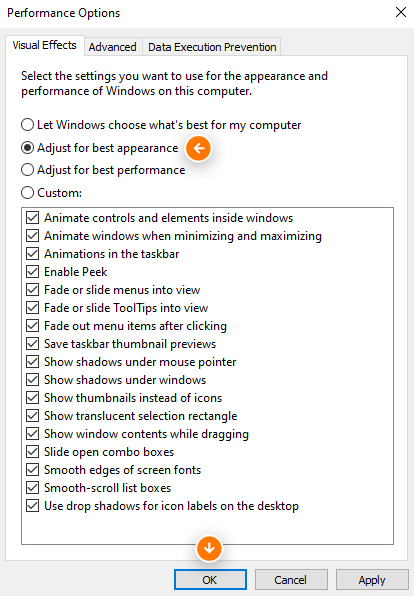
And don’t overlook the visual flair—Windows animations are cool, but they eat cycles. Go to Settings > Accessibility > Visual effects and turn off animations if you’re all about speed. It’s a small change with a big impact, especially when remote work optimization involves seamless multitasking without the lag that turns productive hours into waiting games.
Boosting Security Without the Headache
Remote work brings freedom, but it also invites risks—like that time I accidentally clicked a shady link and had Windows Defender swoop in like a superhero. To keep things secure, enable Windows Hello for biometric logins if your device supports it; it’s as easy as setting up a fingerprint or face scan, turning your login into something straight out of a spy flick. Plus, firewall settings in Windows Security can block unwanted traffic, ensuring your video calls stay private.
Secure your Windows system from threatsFor a comparative table, let’s break down common security features versus their impact on performance:
| Feature | Benefits | Potential Drawbacks |
|---|---|---|
| Windows Defender | Real-time protection with minimal interference | Slight CPU use during scans |
| BitLocker Encryption | Secures data on the go | Can slow boot times on older hardware |
| Windows Firewall | Blocks unauthorized access easily | May require tweaks for specific apps |
This setup not only optimizes Windows for remote work but also adds a layer of peace, letting you focus on collaborations instead of cyber threats. Remember, it’s like locking your front door before heading out—essential, not overwhelming.
Keeping Everything Fresh and Updated
In the ever-evolving world of remote work, staying updated is key, much like how memes keep our social feeds alive. Windows Update might pop up at the worst times, but ignoring it is like skipping software patches that fix vulnerabilities—bad idea. Set it to download during off-hours via Settings > Update & Security, so your system gets the latest without interrupting your flow.
One quirky tip: if you’re a fan of custom setups, explore third-party tools like CCleaner for a deeper clean, but always back up first—Windows has its own Disk Cleanup tool that’s plenty effective. This keeps your drive clutter-free, ensuring that Windows remote work optimization includes smooth file access and quicker load times, turning potential frustrations into wins.
Windows media player alternatives reviewFrequently Asked Questions
Q: What’s the quickest way to improve Windows performance for remote work? A: Start with disabling unnecessary startup programs and switching to a high-performance power plan—it’s a five-minute fix that can dramatically reduce lags during calls.
Q: Do I need to upgrade hardware for better remote work on Windows? A: Not always; optimizing software settings often suffices, but if you’re constantly running out of RAM, an upgrade could be a worthwhile investment for long-term productivity.
As we wrap this up, think about how these tweaks could reshape your daily grind—maybe even inspire you to tackle that project you’ve been putting off. What if your Windows setup became the unsung hero of your remote routine?
Efficient methods for Windows defragmentation