
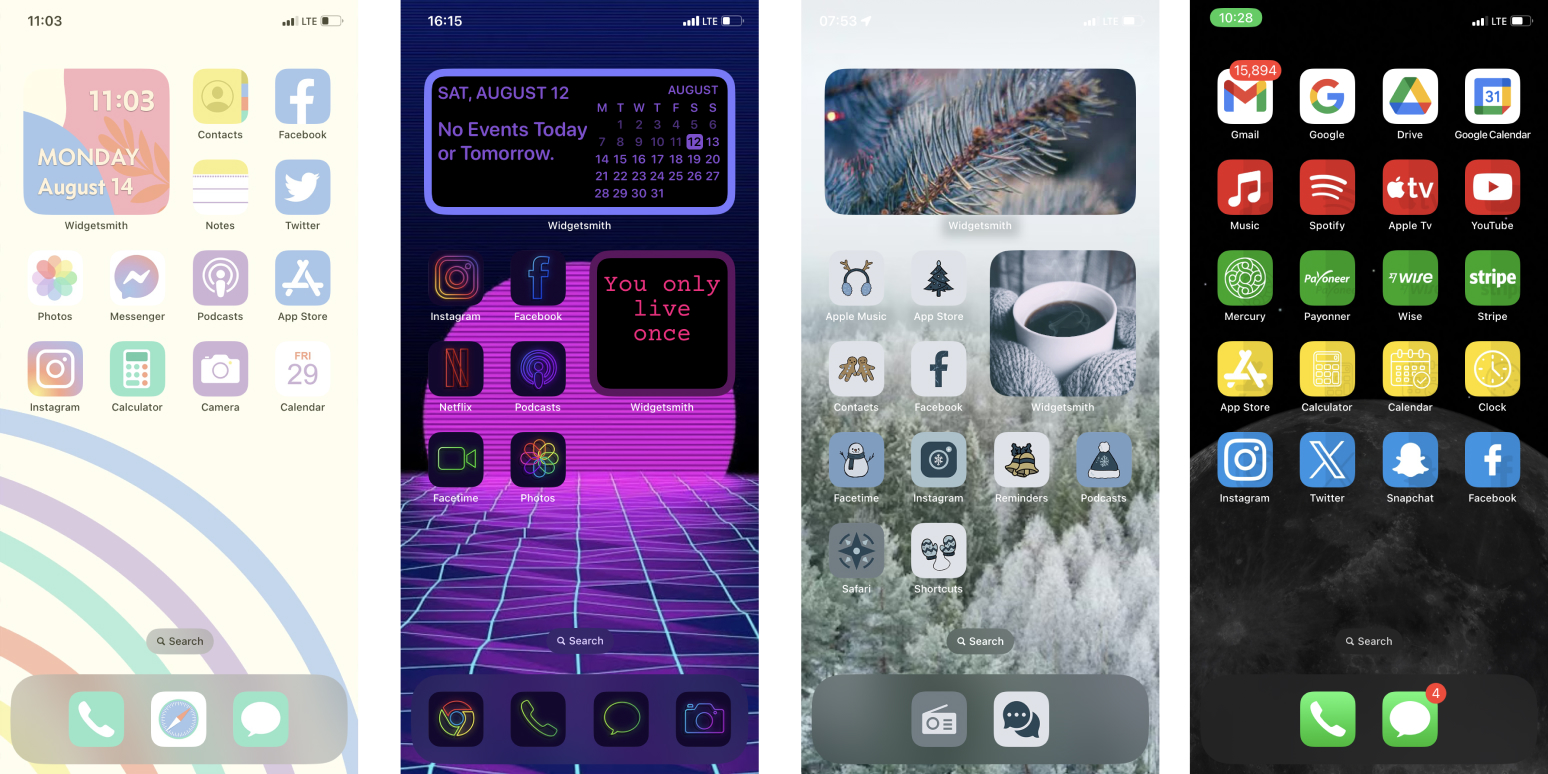
Ever noticed how your iPhone’s home screen can feel like a little digital mirror, reflecting your daily vibe? One day it’s all neat and organized, like a minimalist’s dream, and the next, it’s bursting with colorful widgets and apps that scream “chaos with a purpose.” I’m no tech wizard, but as someone who’s spent way too many evenings tweaking my own setup, I get the thrill of turning that grid into something uniquely yours. Today, let’s dive into some fresh ideas for customizing your iPhone home screen—it’s easier than you think, and it’ll make your device feel like an extension of your personality.
Customizing your iPhone home screen is all about making that first glance count, whether you’re a productivity junkie or someone who just wants a splash of fun. If you’re itching to personalize it, start by heading to your Settings app and exploring the Wallpaper section—it’s a gateway to endless possibilities. You can swap in photos from your library, choose dynamic options that change with the time of day, or even pull from Apple’s curated collections. This simple tweak can transform your screen from bland to brilliant, and honestly, it’s one of those “why didn’t I do this sooner?” moments that adds a personal touch without any hassle.
Picture this: you’re scrolling through your phone, and bam, your home screen greets you with a wallpaper of that epic sunset from your last vacation. It’s not just about aesthetics; it’s about sparking joy every time you unlock your device. Apple rolled out more robust customization tools in iOS 16 and beyond, letting you resize widgets and stack them creatively. To get started, long-press on your home screen until the icons jiggle—that’s your cue to rearrange, add, or remove elements. It’s like playing with digital Legos, but way less messy.
Exploring Basic Home Screen Essentials
Alright, let’s keep it light and straightforward—because who wants a tutorial that feels like a chore? When I first jumped into iOS customization, I stuck to the basics, and it made all the difference. Begin with your app layout; iOS lets you create folders for apps you use less often, freeing up space for your favorites. Drag and drop icons around until it feels intuitive—maybe group your social apps in one spot and productivity tools in another. And don’t overlook the search bar; customizing its position can save you seconds every day, which adds up in our fast-paced world.
Benefits of iCloud for data backupOne fun idea I tried was using the App Library feature, which automatically organizes apps into categories. It’s like having a secret drawer for all that clutter, keeping your main screens clean and focused. If you’re on iOS 14 or later, experiment with the widget gallery—it’s packed with options from weather updates to news feeds. I remember adding a simple calendar widget that synced with my reminders; it turned my home screen into a mini command center without overwhelming the design.
Leveling Up with Widgets and Dynamic Elements
Now, here’s where things get exciting—widgets aren’t just for showing the time; they’re your ticket to a truly interactive home screen. Think of them as little windows into your world, updating in real-time to keep you in the loop. For instance, the Photos widget can cycle through your best shots, adding a personal flair that makes you smile. To add one, just tap the ‘+’ button when your screen is in edit mode, search for what you need, and resize it to fit your layout.
In a world where memes fly across social media faster than you can say “iPhone,” why not incorporate that energy? I once set up a widget for my favorite news app to display trending topics, inspired by how viral videos keep us hooked. It’s a nod to digital culture, making your screen feel current and connected. But mix it up—pair a fitness tracking widget with your health apps for that motivational kick, or go for something quirky like a quote generator to start your day on a high note. The key is variety; iOS offers stacks, where you can swipe through multiple widgets in one spot, keeping things dynamic without clutter.
| Feature | iOS 14-15 | iOS 16+ |
|---|---|---|
| Widget Customization | Basic resizing and placement | Advanced stacking and interactive elements |
| App Icon Changes | Limited to rearranging | Shortcuts for custom icons via apps |
| Dynamic Wallpapers | Static options mainly | Live updates based on time or location |
That table sums up how iOS has evolved, making customization more accessible. It’s like watching tech catch up to our creative urges—one update at a time.
Debunking popular iOS performance mythsGetting Creative with App Icons and Layouts
Ever feel like your apps look too uniform? That’s where custom icons come in, turning your home screen into a canvas. While iOS doesn’t let you change icons natively, you can use the Shortcuts app to create alternatives. For example,
1 Open the Shortcuts app and tap the ‘+’ to create a new one.
Then,
2 Add an “Open App” action, select your app, and customize the icon by choosing a photo from your library.
Quick solutions for iPhone freezing issuesFinally,
3 Add it to your home screen, and voilà—your apps now have a fresh look that matches your style.
This approach lets you draw from pop culture, like using icons inspired by your favorite movies or memes, adding a layer of fun. I once themed my screen around a retro vibe, pulling icons that evoked old-school video games—it was a hit at coffee chats with friends who geek out over the same stuff.
Pro Tips for a Seamless iOS Experience
To wrap up the how-to fun, let’s chat about avoiding pitfalls. One common slip is overstuffing your screen—keep it balanced for easy navigation. Use Focus modes in iOS to tailor your home screen for different scenarios, like a work-focused layout that hides distractions. It’s these thoughtful touches that make your iPhone feel alive, adapting to your life’s rhythm.
Expert advice on iOS privacy settingsAnd just for a quick FAQ vibe: Many folks wonder, “How do I reset my home screen if I mess up?” Simple—long-press and hit “Reset Home Screen” in the edit mode. Or, “Can I use third-party apps for more options?” Absolutely, apps like Widgetsmith let you design custom widgets, but always check for compatibility to keep things smooth.
As we ease out of this chat, imagine glancing at your iPhone and feeling that spark of “that’s me.” What if your next customization becomes your signature style? Go on, play around—your home screen’s waiting to surprise you.