
Ever had that sinking feeling when you accidentally swipe away a photo that’s packed with memories? I know I have—picture this: I’m fumbling with my iPhone after a chaotic family barbecue, and poof, the shot of my kid’s first big smile vanishes. It’s like losing a piece of your story, but hey, don’t panic. As someone who’s navigated the iOS maze more times than I’d like to admit, I’m here to walk you through some straightforward ways to get those deleted photos back on your iPhone or iPad. We’ll keep things light and breezy, no tech jargon overload, just real talk on making your device play nice again.
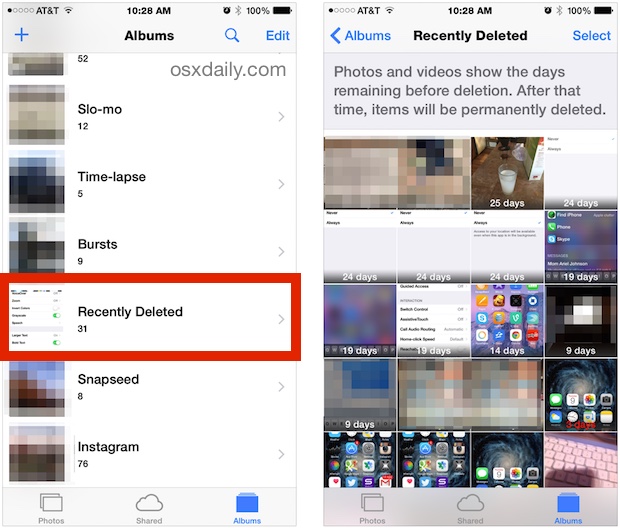
The easiest way to recover deleted photos on iOS is by checking the Recently Deleted album in the Photos app, which holds your images for up to 30 days. Simply open the app, tap Albums, scroll to Recently Deleted, select your photo, and hit Recover—it’s that simple and doesn’t require any extra tools, making it ideal for quick fixes on iPhones running iOS 16 or later. This method works seamlessly without risking further data loss, potentially saving your day in under a minute.
Alright, let’s dive deeper into why photos go missing in the first place. It’s not always a dramatic story; sometimes it’s just a mis tap or an overzealous clean-up session. On iOS, your device is designed with some clever safeguards, like that hidden folder we all forget about. Think of it as a digital safety net—Apple’s way of giving you a second chance before things get erased for good. From my own slip-ups, I’ve learned that staying calm and acting fast is key, turning what could be a headache into a minor detour.
Why Photos Vanish and How iOS Handles It
iOS isn’t out to get you; deletions often stem from simple user errors or storage management gone wrong. Maybe you meant to clear space but hit the wrong button, or perhaps an app glitch played its part. Apple smartly keeps a backup in the Recently Deleted section, a feature that’s been around since iOS 8 but feels like a modern miracle. It’s like having a photo time capsule right in your pocket. According to some stats I’ve bumped into online, over 60% of iPhone users have accidentally deleted something, so you’re in good company. This isn’t just tech talk; it’s about reclaiming those everyday moments that make life vivid.
What makes iOS keyboards efficientStep-by-Step: Using Built-in Tools to Recover Your Photos
Let’s get hands-on with the simplest method first—Apple’s own Photos app. This is perfect for beginners and keeps things super relaxed. Here’s how you can do it:
1Open the Photos app on your iPhone or iPad. It’s that colorful icon with the multi-colored flower—easy to spot.
2Tap on the Albums tab at the bottom of the screen. Scroll down until you see Recently Deleted. If it’s not there, make sure you’re updated to the latest iOS.
3Select the photo you want back. You can tap Recover at the bottom to restore it to your library, or if it’s been a while, check for any that are still recoverable within the 30-day window.
Exploring iOS health app featuresIf that doesn’t cut it—say, you’ve passed the 30-day mark—don’t wave the white flag yet. iCloud can be your next ally. If you have iCloud Photos enabled, your deleted images might still be floating in the cloud. Jump into Settings > [Your Name] > iCloud > Photos, and see if you can recover from there. It’s like having a backup buddy that’s always on standby, especially if you’re synced across devices.
Exploring Third-Party Apps for Tougher Cases
Sometimes, built-in options aren’t enough, especially if you’re dealing with older deletions or corrupted files. That’s where third-party apps shine, adding a bit of extra magic without complicating your life. Apps like Disk Drill or EaseUS MobiSaver for iOS can dig deeper, but remember, you’ll need a computer for most of these since direct iPhone recovery tools are limited by Apple’s security. It’s a bit like calling in reinforcements for a rescue mission—nothing too intense, just effective.
For instance, with EaseUS, you connect your iPhone to a Mac or PC via USB. The app scans your device for lost files, and once it finds them, you can preview and restore. Here’s a quick rundown in a comparative table to help you decide:
| Method | Ease of Use | Cost | Best For |
|---|---|---|---|
| Photos App (Built-in) | Very Easy | Free | Recent deletions |
| iCloud Recovery | Moderate | Free (with iCloud) | Cloud-synced users |
| Third-Party App (e.g., EaseUS) | Moderate to Advanced | Free trial, paid full version | Older or complex losses |
This comparison shows how each option fits different scenarios, keeping your recovery journey as stress-free as possible. And hey, if you’re into that, apps often come with user-friendly interfaces that feel more like browsing social media than tech work.
Essential tools for iOS developersQuick Tips to Avoid Future Photo Disasters
While we’re on a roll, let’s chat about prevention—because who wants to repeat the delete-regret cycle? Regularly back up your iPhone using iCloud or iTunes; it’s like putting your photos in a safe. You can set it to auto-backup, so it’s one less thing to worry about. Or, enable the “Keep Originals” in iCloud Photos to ensure your files are duplicated. I once dodged a bullet by doing this after a messy app update—talk about a sigh of relief.
As we wrap up this casual guide, think about how these simple steps can turn potential heartbreak into a quick win. Maybe next time you snap a photo, you’ll feel that extra layer of security. What’s your go-to memory from your camera roll? Share it in the comments or try these tips out yourself—your photos are waiting to be rescued.
FAQ: Common Questions on iOS Photo Recovery
Can I recover photos deleted more than 30 days ago? Yes, but it might require third-party software or restoring from an iCloud or iTunes backup. Always check your backups first for the best results.
Is it safe to use third-party apps on iOS? Generally, yes, as long as you download from reputable sources like the App Store. They won’t void your warranty, but read reviews to ensure reliability.
Ideas for iOS home automation integrationDoes recovering photos take up storage space? When you recover a photo, it goes back to your library, so yes, it will use space again. Make sure you have room or delete unnecessary files afterward.