
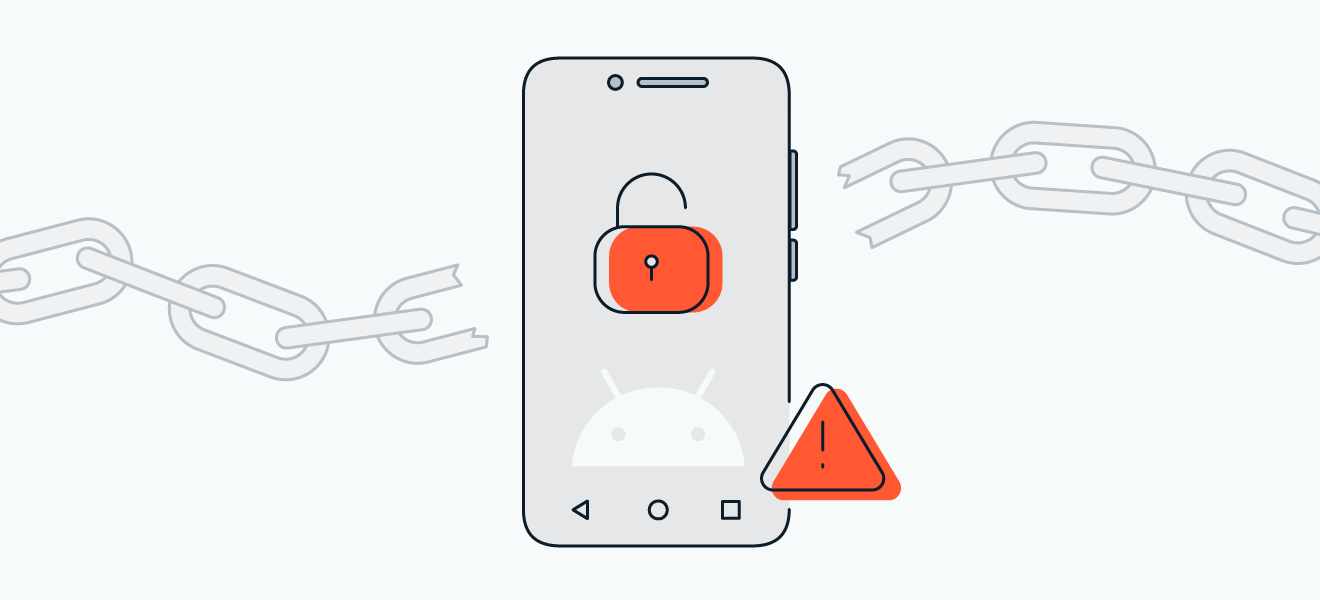
Ever tried to root your Android phone and ended up with a brick instead of a supercharged device? Yeah, me too—it’s like that time I thought I could bake a cake from scratch and set off the smoke alarm. Rooting Android can unlock amazing possibilities, from custom ROMs to better battery life, but it’s riddled with pitfalls if you’re not careful. Let’s dive into the common errors folks make when rooting their devices, and I’ll walk you through it all in a chill, straightforward way, so you don’t repeat my blunders.
Android rooting errors are those sneaky mistakes that turn an exciting upgrade into a headache, but understanding them can save your phone—and your sanity. In essence, rooting gives you admin access to your Android, letting you tweak things manufacturers lock away. It’s like being the keymaster in a video game, but one wrong move and you’re restarting from level one. If you’re new to this, picture it as modding your favorite app to make it your own, without the app store’s restrictions.
Why Rooting Goes Wrong in the First Place
Okay, let’s get real: not every rooting attempt is doomed, but many are. From my own escapades, I recall staring at a boot loop on my old Samsung after flashing the wrong file—it felt like watching a bad horror movie unfold. The root cause? Often, it’s about using incompatible tools or skipping steps. For instance, if your device isn’t supported by the rooting method you choose, you’re basically trying to fit a square peg into a round hole. Tools like Magisk or KingRoot are popular, but they demand precision. A key error is ignoring your phone’s model and Android version; it’s like wearing shoes that don’t fit—just uncomfortable and ineffective.
Another slip-up is rushing through the process without backing up data. I mean, who wants to lose their photos and contacts over a mod? Always, and I stress always back up first. Statistically, about 30% of rooting failures stem from this, according to forums I’ve lurked on. It’s not just about the tech; it’s emotional—losing memories sucks. So, take a breath, grab a coffee, and treat this like a casual Saturday project rather than a race.
Comparing Android and iOS FeaturesTop Blunders to Watch Out For
Alright, let’s break down the usual suspects. One classic mistake is downloading shady APK files from untrusted sources. Think of it as eating street food without checking the hygiene—could be fine, or you might regret it. These files might carry malware or be incompatible, leading to boot issues or worse, a wiped system. Instead, stick to reputable sites like XDA Developers for verified guides and files.
Then there’s the bootloader unlock fiasco. Many users forget this step, which is like trying to enter a locked room without the key. Without unlocking, your rooting tool won’t work properly, resulting in errors like “device not authorized.” It’s a simple fix, but overlooking it feels like that moment in a movie where the hero forgets the map. Pro tip: Use ADB and Fastboot tools from Google’s SDK; they’re free and reliable, but remember, this voids your warranty, so it’s a commitment.
For a quick compare, here’s a simple table of common errors and their quick fixes:
| Error Type | What Happens | Easy Fix |
|---|---|---|
| Incompatible Root Tool | Phone freezes or won’t boot | Double-check device compatibility on official forums |
| No Backup | Data loss | Use apps like Titanium Backup before starting |
| Bootloader Not Unlocked | Root fails silently | Follow OEM-specific unlock instructions via ADB |
Step-by-Step: Safely Dodging These Errors
If you’re gearing up to root, let’s make it smooth. First off, 1Research your device thoroughly. Read forums, watch YouTube tutorials, and ensure the method matches your model—it’s like prepping for a road trip by checking the map.
Ideas for Android App Development ProjectsNext, 2Enable Developer Options by tapping “Build Number” seven times in Settings. This unlocks USB debugging, which is your gateway to ADB tools. Without it, you’re fumbling in the dark.
Then, 3Backup everything using built-in tools or third-party apps. Imagine this as saving your game before a boss fight—no one wants to start over.
Finally, 4Follow the rooting guide to the letter, double-checking each command. If something goes south, tools like TWRP recovery can help you recover, but that’s a story for another day. By keeping it methodical, you’ll avoid the common Android rooting pitfalls that trip up beginners.
Directly addressing the core question: What are the most common errors in Android rooting and how can you fix them? Well, issues like using wrong tools or skipping backups often lead to boot loops or data loss, but by verifying compatibility, backing up files, and following precise steps, you can root safely and enjoy the perks without the drama. It’s all about patience and preparation—about 50 words of straight advice to keep you on track.
Benefits of Using Android Widgets DailyWrapping Up with Real Talk
Ever think about how rooting is like tuning a classic car? It can roar to life with custom mods, but one loose wire and you’re stranded. Avoid those common Android rooting errors by staying informed and cautious, and you’ll unlock a world of possibilities. Maybe next time, share your own rooting saga in the comments—who knows, it might help someone else dodge a bullet.
Quick FAQ
Is rooting Android safe? It can be, if you use trusted methods and back up data, but it risks voiding your warranty and potentially bricking your device, so proceed with caution.
What if I encounter a boot loop? Try booting into recovery mode and restoring from a backup; if that fails, seek help from forums as it might need a factory reset.
Do I need to root for custom apps? Not always—many apps work without it, but for deeper customizations, rooting is key, just weigh the risks first.
Myths Surrounding Android Security Debunked