
Ever stumbled upon an Android app that just feels… right? You know, the ones where buttons glide smoothly, colors pop without overwhelming you, and everything flows like a well-choreographed dance? That’s the magic of Android Material Design, and let me tell you, as someone who’s tinkered with app development on quiet weekends, it’s like discovering a secret ingredient that elevates your project from good to unforgettable. We’re diving into its benefits today, keeping things light and straightforward, because who wants a stuffy lecture when we’re talking about making tech fun?
Android Material Design benefits your apps by creating a unified look that users love—think intuitive navigation, responsive elements, and a visual language that feels familiar yet fresh. In essence, it streamlines development while boosting user engagement, making your Android tutorials more effective and enjoyable to build upon. If you’re knee-deep in Android tutorials, embracing this design system can save time and wow your audience with polished results.
Picture this: You’re scrolling through your phone, and suddenly an app doesn’t just work—it delights. Material Design, Google’s brainchild from 2014, draws from real-world materials like paper and ink to craft digital interfaces that mimic tangible interactions. It’s not just about aesthetics; it’s about empathy in design. I remember my first encounter with it while following an Android tutorial on building a simple weather app—once I swapped out clunky buttons for Material components, the whole thing came alive, almost like adding a heartbeat to code. This approach makes learning Android development less of a chore and more of a creative adventure.
Why Material Design Feels Like a Breath of Fresh Air
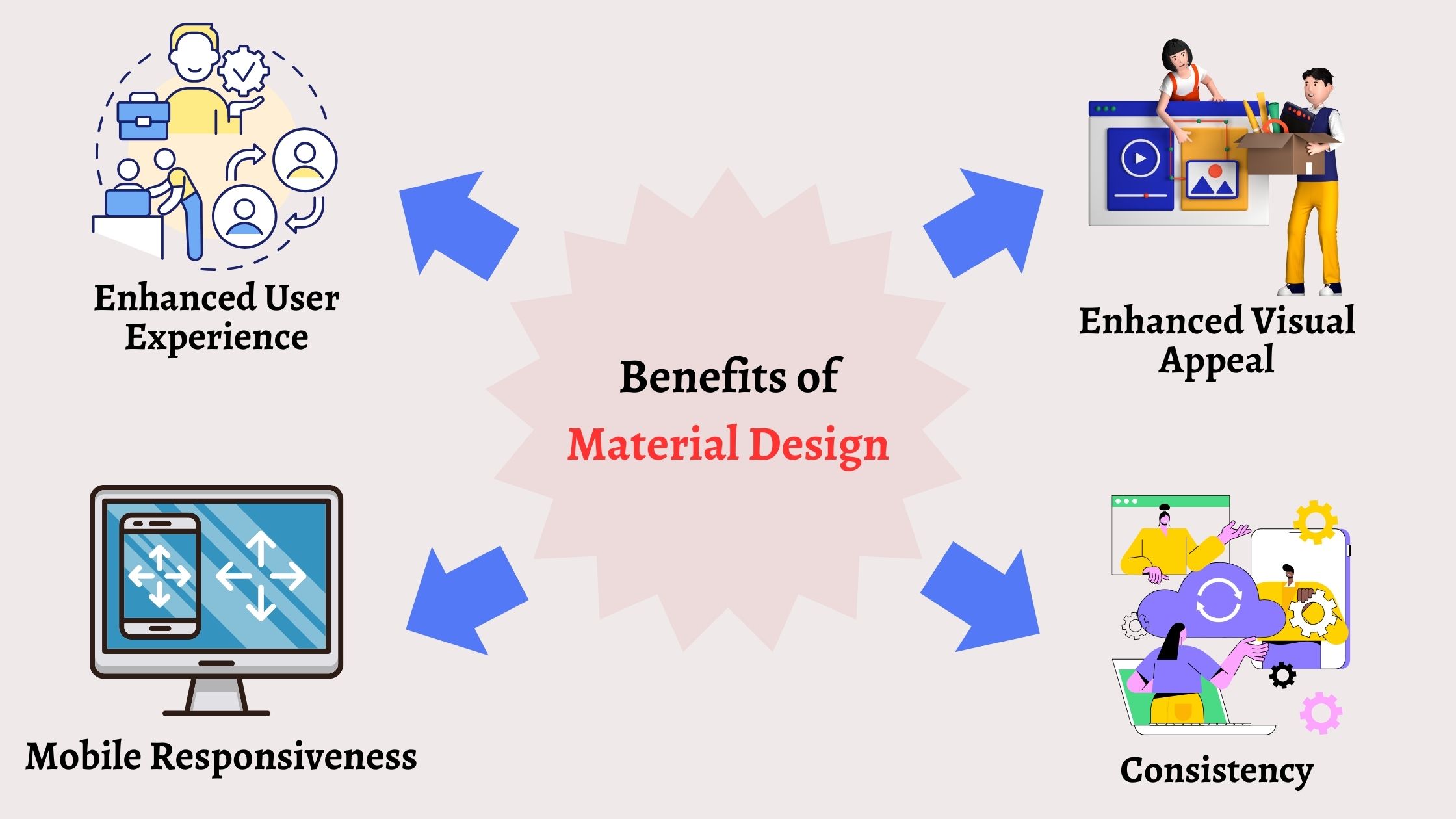
In the world of Android tutorials, Material Design stands out for its ability to enhance user experience without complicating your code. One major perk is consistency—apps built with it adhere to a set of guidelines that make navigation predictable. Ever get frustrated with an app that hides menus in weird places? Material Design fixes that by using familiar patterns, like floating action buttons or bottom navigation bars, which reduce cognitive load. From a developer’s perspective, this means fewer headaches when you’re piecing together tutorials, as components are reusable and adapt seamlessly across devices.
Comparing Custom Android SkinsAnother angle? Accessibility. Material Design incorporates features like dynamic type scaling and color contrast rules, ensuring your app is inclusive. I once adapted an Android tutorial for a friend’s accessibility-focused project, and watching the Material themes adjust for different user needs was eye-opening—it’s like giving your app a superpower to connect with everyone. Plus, with Android’s vast user base, sticking to Material means your creations play nice with the ecosystem, from phones to tablets, fostering that oh-so-important cross-device harmony.
Boosting Performance and Efficiency in Your Android Projects
When you’re knee-deep in Android tutorials, efficiency is key, and Material Design delivers by streamlining your workflow. It promotes modular code through libraries like Material Components for Android, which let you drop in pre-built elements—think cards, dialogs, and animations—that save hours of custom coding. In my own experiments, swapping to Material sped up prototyping; what used to take days now feels like a casual afternoon hack. This efficiency isn’t just about speed; it’s about freeing up brainpower for the fun parts, like innovating on features that make your app shine.
Let’s not forget responsiveness. Material Design’s emphasis on adaptive layouts means your app looks great whether it’s on a tiny screen or a folded device. It’s like tailoring a suit that fits every body type—versatile and flattering. For tutorial enthusiasts, this translates to learning best practices that future-proof your skills, ensuring whatever Android version comes next, you’re ready. And here’s a neat metaphor: Imagine your code as a symphony; Material Design is the conductor that keeps everything in tune, preventing discordant notes from jarring the user experience.
Step-by-Step: Integrating Material Design into Your Android Tutorial
If you’re following Android tutorials, jumping into Material Design is easier than you think. Here’s a quick guide to get you started, keeping it relaxed and actionable.
Top Strategies for Android Privacy Protection1Set up your project in Android Studio by adding the Material Components dependency in your build.gradle file. It’s as simple as including ‘com.google.android.material:material:1.6.1’ or the latest version—check the official docs for updates.
2Apply themes in your styles.xml, like switching to Theme.MaterialComponents.DayNight for that modern vibe. This step transforms your app’s baseline, making Material Design benefits immediately visible through updated colors and typography.
3Incorporate components such as MaterialButton or MaterialCardView in your layouts. Experiment with attributes like elevation for shadows that add depth—it’s like giving your UI a 3D pop, straight from those Android tutorials you’ve been devouring.
A Quick Compare: Material Design vs. Traditional Android UI
To put things in perspective, let’s break it down with a simple table. This isn’t about bashing old-school methods; it’s about showing how Material Design levels up the game for Android developers.
Ideas for Android Fitness Tracking| Aspect | Traditional Android UI | Material Design |
|---|---|---|
| User Experience | Often basic and functional | Intuitive and engaging, with animations and feedback |
| Development Time | Can require custom tweaks | Faster with ready-made components |
| Adaptability | Device-specific adjustments needed | Seamless across screens and orientations |
In real-world scenarios, like that viral app you saw on social media, Material Design’s edge shines through. It’s influenced pop culture in apps from Google itself, making interfaces as shareable as a funny meme. As you dive into more Android tutorials, you’ll see how this design philosophy turns code into something users actually want to interact with daily.
Wrapping Up with a Thoughtful Nudge
As we ease out of this chat, imagine the satisfaction of launching an app that not only functions flawlessly but also sparks joy— that’s the lasting gift of Android Material Design. Whether you’re a hobbyist or a pro, it’s about crafting experiences that resonate, so why not tweak that next tutorial project and see the difference for yourself?
FAQ
Is Material Design only for beginners in Android development? Not at all; it’s a tool for all levels, helping beginners build solid foundations while letting experts refine polished apps with less effort.
How does Material Design improve app performance? It optimizes for efficiency by using efficient components and guidelines that reduce unnecessary code, leading to smoother, faster apps without bloating resources.
Common Pitfalls in Android ChargingCan I mix Material Design with other UI frameworks? Absolutely, though it’s best to stick with it for consistency—mixing can sometimes lead to inconsistencies, so test thoroughly in your Android tutorials.